Category Archives: Linux

Bulk SMS in India

SMS is the 2nd cheapest way of fast communication with Bulk EMail dominating the commercial usage. Now a days everybody has Mobile Phones and SMS is being used as a Marketing tool, although it is used by Banks and other Financial institutions for verification and informational purposes as well. Sending of SMS is regulated by Telecom Regulatory Authority of India (TRAI) in India. Mass SMS or Group SMS can be sent in many ways and few are enumerated below:

  1. Send Group SMS with the help of a USB Modem and appropriate Software controllable from your Windows Computer.
  2. Use your Mobile Phone and appropriate Software to create a Group and then send SMS Messages.
  3. Use SMS Gateway to send Promotional or Transactional SMS Messages.

Depending on the size of your SMS Campaign, you can select any of the appropriate methods to start your Bulk SMS Campaign. The Cost involved to send SMS Messages in Bulk depends on type of SMS Message and method you select for your SMS Campaign. Irrespective of the method you select for your SMS Campaign, you do need to arrange list of Mobile Numbers yourself, Yes you are responsible for the SMS Messages sent and you need to decide whether you need replies from the SMS Messages sent or you want a one way communication only.

Sending SMS from your Windows Computer

The cheapest and most controllable way to send SMS Messages is sending SMS Messages from your own SIM Card. You can send SMS to a group of people from your Windows 7 or later Computer and Bulk SMS Software. Apart from being the most controllable way, this method guarantees that all the SMS Messages sent are received by your recipients in a timely manner.
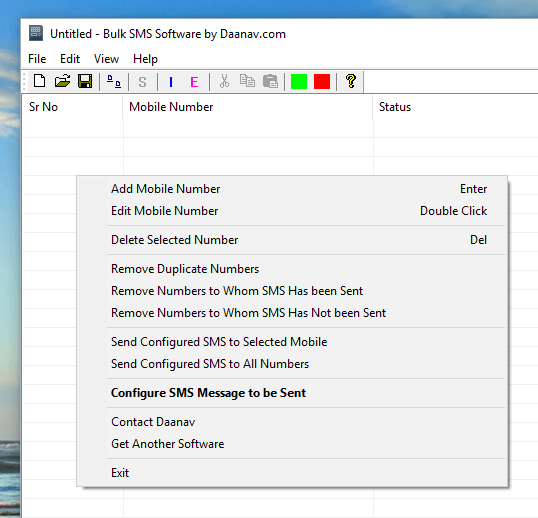
Bulk SMS Software to Send SMS Messages in Bulk in India and other Countries

Bulk SMS Software to Send SMS Messages in Bulk in India and other Countries

The SMS Messages delivered by this Software with the help of USB 3G or 4G Dongle and a SIM Card. Using a Pre-Paid SIM Card with SMS Packs is the cheapest way of sending SMS Messages. Depending on your Mobile Service Provider and the SMS Pack you select, you can send SMS Messages at the rate of 11 paise per SMS or even cheaper. As you do have the SIM Card used for sending SMS Messages, you can receive reply of SMS Messages from your recipients and the comfort of using a Windows Computer gives you total control over the SMS Messages.

As of writing this post, you can send 100 SMS Messages per day from any given SIM Card by utilizing the SMS Package. In case you do send more than 100 SMS Messages from any given SIM Card on a day, your Mobile Operator will charge you standard rate, which can be costly for SMS Campaign.

Bulk SMS with Mobile Phone

Yes you can send Bulk SMS with your Mobile Phone as well. There are lots of Free and Paid Software Applications available for Android, Windows Phone and other Mobiles which allow you to create a Group and then send SMS Messages. Although tempting it may sound, it can become difficult to manage large list of Mobile Numbers for SMS Campaign.
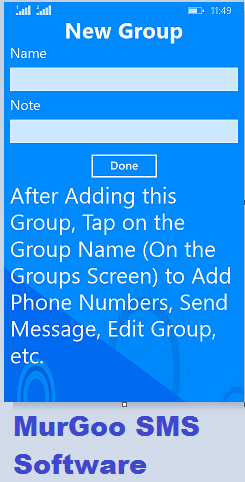
Bulk SMS Software for Windows Phone

Bulk SMS Software for Windows Phone

Sending Bulk SMS with Mobile is a good choice, when the number of people to whom you want to send SMS is a short list. Group SMS within Friends or family members to broadcast important event or something like that is the easy and manageable.

Use SMS Gateway to send Promotional or Transactional SMS Message

Using an SMS Gateway to send Bulk SMS Messages is useful when you do have a really large list of Mobile Numbers. The cost of using an SMS Gateway to send Bulk SMS Messages depends on the number of messages you wish to send. Many SMS Marketing Companies offer Bulk SMS Service for SMS Price ranging from 7 paise per SMS to 16 Paise per SMS. Yes you have to pay around 15 percent Service Tax as well.

Once you have signed up with an SMS Gateway for sending Bulk SMS, you need to use a Web based Interface to upload and manage your list of Mobile Numbers. There are two types of SMS Messages you can send with SMS Gateway including Promotional SMS Message and Transnational SMS Message.

Promotional SMS Messages come in 2 variants called as high priority and normal priority SMS Messages. Irrespective of the Time you want to send the SMS Messages, these SMS Messages can only be delivered from 9 AM to 9 PM. Mobile Subscribers who have subscribed to Do Not Disturb Registry will never receive your promotional SMS Messages.

Transnational SMS Messages are delivered instantly and cannot be used for Marketing purpose. before you can send Transnational SMS Messages, you need to send a letter to TRAI for Approval. This type of SMS Messages are normally used by Banks when making an Online Payment for SMS Verification.

Best way to Send Bulk SMS in India

SMS Marketing in India is a huge business and lots of companies are involved in this. Depending on the purpose of your SMS Campaign, you can select any of the above mentioned 3 ways to send Bulk SMS. In case you do have a small business and knowledge of Windows Computers, using the Bulk SMS Software is the quickest and cheapest way to send SMS in Bulk. In case you do want to send International SMS Message or you want to integrate your existing Desktop or Web Application with SMS functionality, then using the SMS Gateway can be a good choice. For sending Group SMS to a group of Contacts, Friends or relatives, using your Mobile Phone is the best way to send Bulk SMS.
Keep Linux Active and prevent it from Sleeping

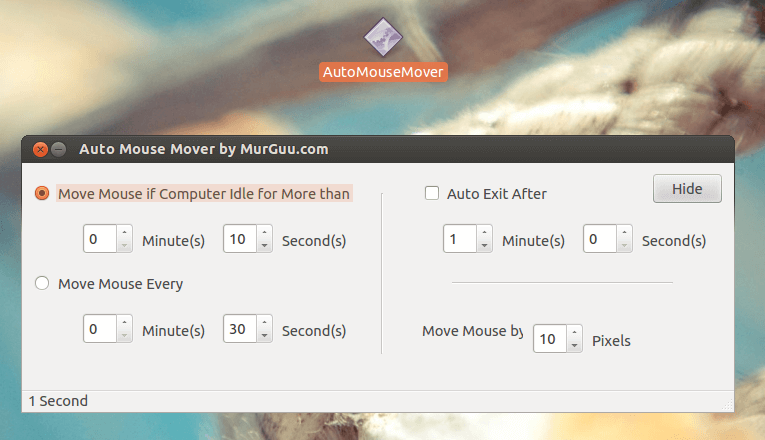
Now you can keep your Linux Computer Active even when you are not using it. The Software Application provided here triggers Automatic Mouse Movements due to which a Linux Computer with GUI keep on getting automated input and hence stays active. The given below screenshot of the Linux Application to automate Mouse Movements has been captured on a Ubuntu Desktop and with appropriate libraries, it works on other Linux Distros like Linux Mint, Fedora, OpenSUSE, etc.

Keep Linux Active with Mouse Mover

Keep Linux Active with Mouse Mover

How to Keep Linux Active and Awake

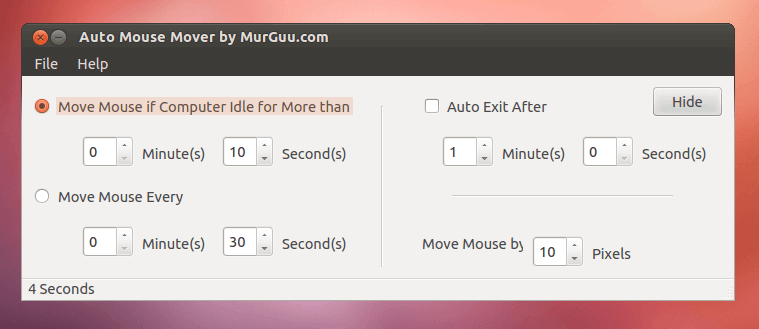
Download, extract and run the Mouse Mover Application. There is no installation required and the application should work just fine without any extra libraries on any latest Linux Distro. The above screenshot displays the main screen of the software from where you can configure various parameters of the software. All the action performed by the software are configurable and are offered in a single screen. Given below are the configurable parameters as displayed in the above screenshots.

  • Automated Mouse Movements only when your Linux Computer is left inactive or idle for configurable number of minutes and seconds.
  • You can alternatively configure the software to skip the idle check and continuously keep on moving mouse cursor at timed interval configurable in terms of Minutes and Seconds.
  • Optional Auto Exit feature allows you to time the software to automatically exit after configurable number of minutes and seconds. This way you can configure the software to keep your Linux Computer Active only for specified duration and then later on let the automated power management settings kick in and save power and let the Linux Computer utilize the power saving features.
  • The last setting is the number of pixels by which Mouse Cursor is moved. A lower value of the Pixel count will ensure that your Linux Computer is kept Active by the software, however the automated Mouse Movements are barely noticeable. On the other hand a large value of Pixel count ensure that you can visually see the automated Mouse Cursor Movements.

Hide the Application to System Tray

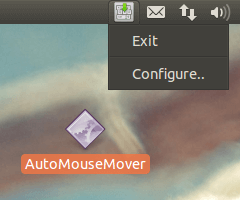
Once you are done configuring the software parameters as described above, you can hide the application’s main screen so that you can fully utilize your Desktop Screen. Depending on your Linux distro, the System Tray can be at the bottom or at the top. The Screenshot below displays the Mouse Movement Application running on Ubuntu which has it’s system tray at the top.

System Tray Menu of Linux Mouse Mover to Keep Linux Active

System Tray Menu of Linux Mouse Mover to Keep Linux Active

Note that the Linux Mouse Mover Software Menu offers you to open the main screen of the software and configure it. You can also exit the software from the Menu and then later launch it manually from the Application Icon. In the above screenshot the Application has been placed on the Desktop and it is keeping the Linux Computer Active and Awake so that the Linux Computer does not shuts down automatically when left inactive or idle.

The Linux Application presented above is available on a Free to Download and try basis. There is a usage based limit in the software. The Software download link provided is a 32 bit Linux application which does works on 32 bit and 64 bit Linux distros. In case you do have any other operating system, you can navigate to the Keep Computer Active post of this blog which offers similar Mouse Movement Applications on Windows, Macintosh and of-course on Linux.

Keep Computer Active and Prevent from Sleeping

Now you can Keep your Windows, Linux or Mac OS X Computer Active for as long as you want with appropriate Software Download Available here.  Dedicated Applications are provided here for each Operating System as mentioned earlier and all have been designed to keep your Computer Active. You do not need admin access to run any of the applications presented here and there is no hardware change involved. Just download the appropriate software and run it right now to keep your Computer Active and prevent it from Sleeping while you need it to do Computer Processing for you.

Keep Windows Computer Awake and Prevent from Sleeping

Keep Windows Computer Awake and Prevent from Sleeping

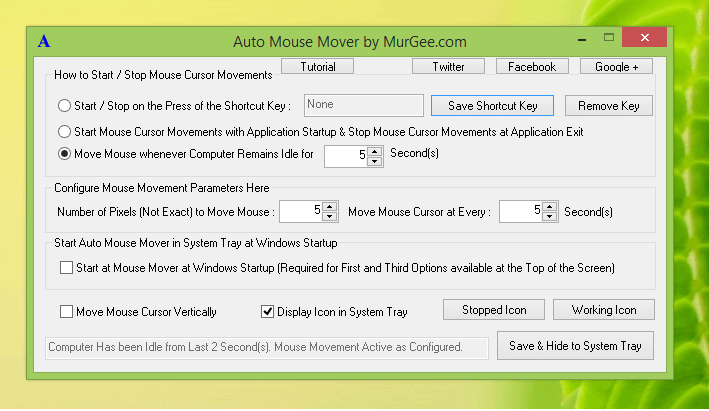
The above Screenshot displays a Downloadable Software Application for Windows which is fully configurable and has been designed to keep a Windows Computer Active for as long as you want. Yes you can also keep a Remote Desktop Connection Active with this nifty Mouse Moving Application which does not require any Installation and neither it requires you to have Admin Access to your Windows Computer. You can navigate to the Auto Mouse Mover home page which talks in details about all the features offered by this Windows Application and download it. A Standalone Application version is available for this Mouse Moving Application and another Standard Setup is available as well. Although you can also use it to play Prank on another Computer by increasing the Mouse Movement Speed, however it’s purpose is to keep Windows Active and prevent it from going into Sleep, Hibernation or do Automatic Log Off.

Keep Mac OS X Awake and Prevent from Sleeping

Keep Mac OS X Awake and Prevent from Sleeping

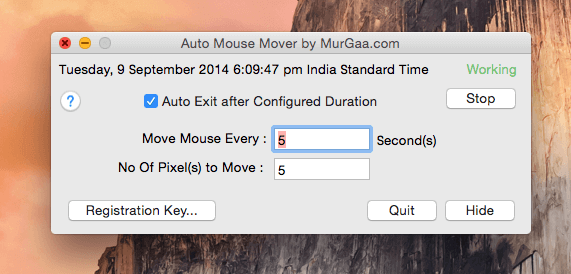
Another Application is presented above whose sole purpose is to keep Mac running and prevent it from going into Sleep Mode. The above screenshot has been captured on Mac OS X Yosemite  v10.10, however it is backward compatible to Mac OS X 10.6, Mac OS X 10.7, Mac OS X 10.8 and Mac OS X 10.9. This Application also displays a Menu in Status Bar of Max OS X at the top right corner with which the application can be easily controlled. Whether you are watching a Movie, Downloading Files from Internet or just doing some other Long task for which you need your Mac OS X to stay awake, Download this Free to try Application and keep your Mac OS X Active for as long as you want. This Mouse Moving Application does not performs any Mouse Click and hence it will not disturb anything going onto your Mac. With an Auto Exit feature of the software, you easily keep your Mac Active for pre-defined time interval.

Keep Linux Computer Awake and Prevent from Sleeping

Keep Linux Computer Awake and Prevent from Sleeping

The final application presented in this post can be used to keep a Linux Computer Active and prevent it from going into Sleep Mode. It can be used in two modes as displayed in the above screenshot and displays idle computer time in the status bar. All the configurable parameters are available in the main screen of this Mouse Moving Application and stores it’s settings automatically. The Application presented above is a Free to Download and try Application. Once the trial expires, you can pay $10.00 and unlock it’s trial limitations. Whether you are running Linux Ubuntu, Linux Mint, Red Hat or any other flavor of Linux, you can use this Mouse Moving Application and keep your Linux Computer active. Download this 32 Bit Version of the Application and run it on your Linux 32 bit Computer or on your Linux 64 bit Computer with appropriate 32 bit libraries installed. In case you face any issue when running this application, do try to launch the application from Terminal Window and send the error to Support Team for possible assistance.

Note that above applications are designed to keep your Computer Active and before downloading or using them you must understand that as long as any of the above Mouse Moving Application is keeping your Computer Active, any automatic configured tasks will not take place e.g your Computer’s Screen saver will not Activate, your Computer will not go to Hibernation / Sleep Mode, you will not be signed out of your user account. You must make sure that you do understand that Idle Actions will not be performed as your Computer will be kept Active. Use the software carefully and with full responsibility of your own. The Software download Links have been provided above as and wherever applicable.

Free Watermark Software for Linux

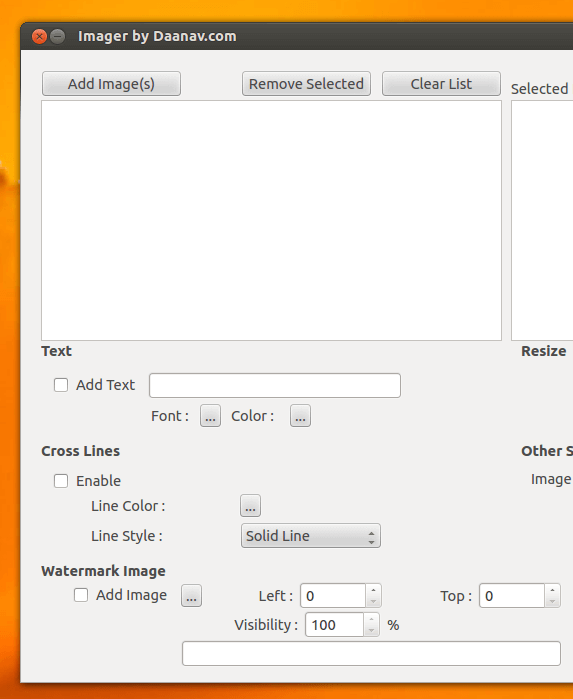
The Watermark Software presented here is for Linux Distributions like Ubuntu, Linux Mint, Kubuntu, etc. This watermark Application allows you to add Text and Image Watermark to single or Image Files in Bulk. Various Image File Formats are supported by this watermark Software for Linux including PNG, JPG, BMP, ICO, TIFF and other Image File Formats. Given below partial screenshot of the software allows you to add Text Watermark in selected Font and Color, allows you to add crossing Lines in selected format and color, and finally allows you to add Image Watermark at configurable location on the selected images.

Linux Watermark Software to Add Text or Image Watermark

Linux Watermark Software to Add Text or Image Watermark

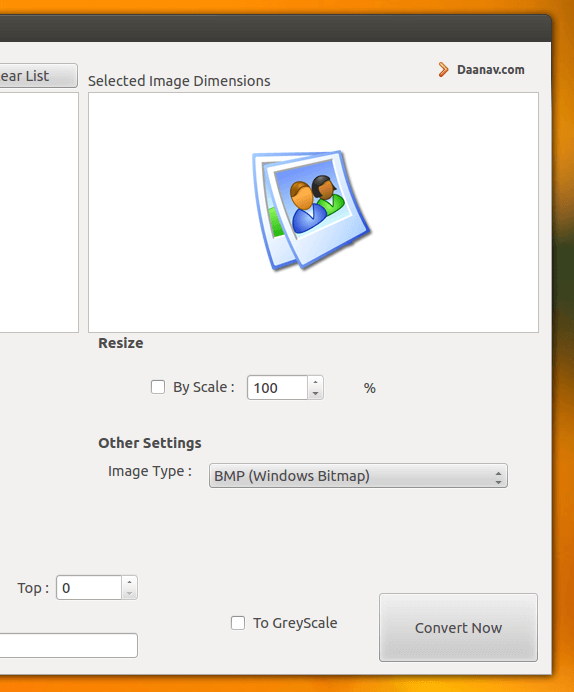
Download this Watermark Software on your Linux Computer and add Watermark to Image Files in Bulk. Yes you can even Resize Image Files with inbuilt Image Resizer and finally save the new Image Files in File format of you choice as displayed in the screenshot below. With this Watermark Software for Linux, you can even convert Image Files in Bulk to Grey Scale while doing conversion, watermarking and all other features of this Bulk Image Handling Utility for Linux.

Linux Watermark Software as Image Resizer and Image Converter

Linux Watermark Software as Image Resizer and Image Converter

A New Folder is created in Pictures Library by this Watermark Software for Linux every time File Conversion is done with this software. Once the Watermarking procedure is completed by the software, the folder in which new Image Files have been stored is opened by the software automatically. You can also use the Linux File Renamer to rename the newly created Image Files, although the file names of new Image Files is derived from the original file name and should be easy to understand. Given below is the summary of features supported by this Watermark Software for Linux.

  • Add Text Watermark in selected Font and Color.
  • Add Image Watermark at selected position with configurable transparency.
  • Add Cross Lines in configurable Color and Line Style.
  • Resize Image Files in Bulk.
  • Use this Watermark Software as Image Converter.
  • Convert Colored Images to Gray Scale in Bulk.
  • Inbuilt Image Viewer with Image Dimension Display.

.


Auto Screenshot Linux

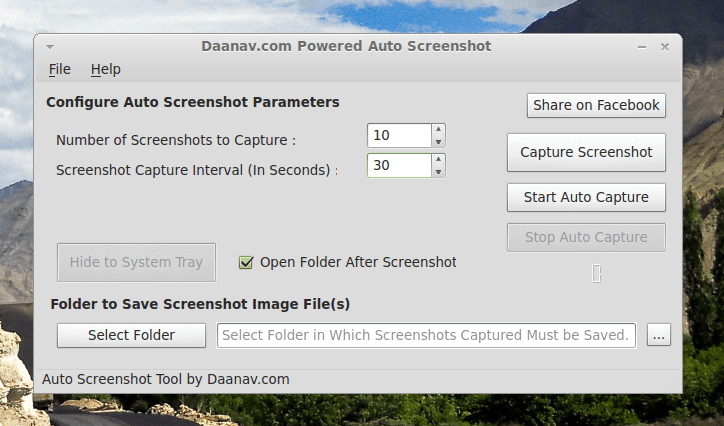
A Native Linux Application Utility is presented in this post which allows you to Capture Screenshot Automatically on your Linux Computer. The Auto Screenshot Application for Linux has a graphical user interface to configure the number of Screenshots to capture, configure Screenshot Capture Interval and other parameters. The Main Window of the Auto Screenshot Application also allows you to select a folder in which you wish to save the Screenshots captured. In case your Linux Distro supports System Tray, you can hide the Linux Auto Screenshot Utility to System Tray and control the Screenshot capture process with popup menu.

Automatically Capture Screenshots on Linux Computer

Automatically Capture Screenshots on Linux Computer

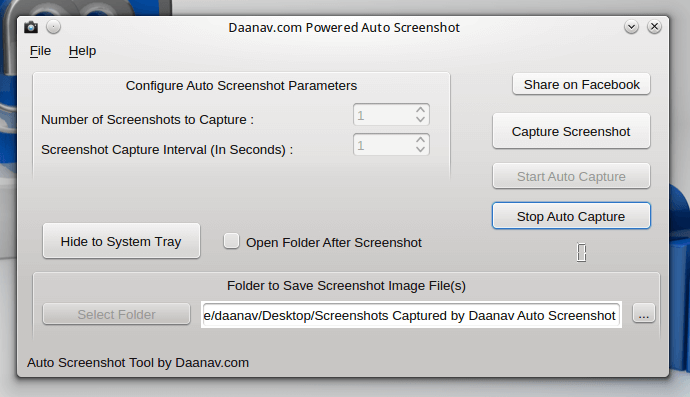
The above Screenshot displays the main window of the Auto Screenshot Application for Linux. The Auto Screenshot Application provides two ways in which you can capture Screenshot. Either you can capture Screenshots of your Linux Desktop on a Timer controlled basis or you can just capture a one time screenshot. In order to capture Screenshots on a regular interval, configure the number of Screenshots you wish to capture and assign a suitable time interval at which the Screenshots must be captured. On the other hand, if you want to capture a single Screenshot of your Linux Desktop, simply Click on the Capture Screenshot button and the Linux Auto Screenshot will automatically Minimize itself, Capture a Screenshot and will open up the folder containing the Screenshot file captured.

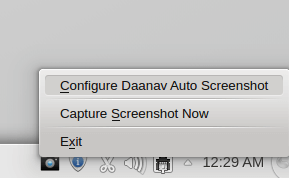
System Tray Menu of Linux Auto Screenshot Utility

System Tray Menu of Linux Auto Screenshot Utility

In case your Linux Desktop supports System Tray Icons, you can Hide the Auto Screenshot Utility to System tray and control it using the Popup Menu as displayed in the Screenshot above. However if your Linux Distro does not support System tray Icons, you can still use this Screenshot Capture Utility by minimizing the Application to the taskbar. Given below Screenshot displays how does the Auto Screenshot Utility looks when run on a Linux Distro which does not supports System Tray Icons.

Linux Auto Screenshot on Linux Mint Cinnamon

Linux Auto Screenshot on Linux Mint Cinnamon

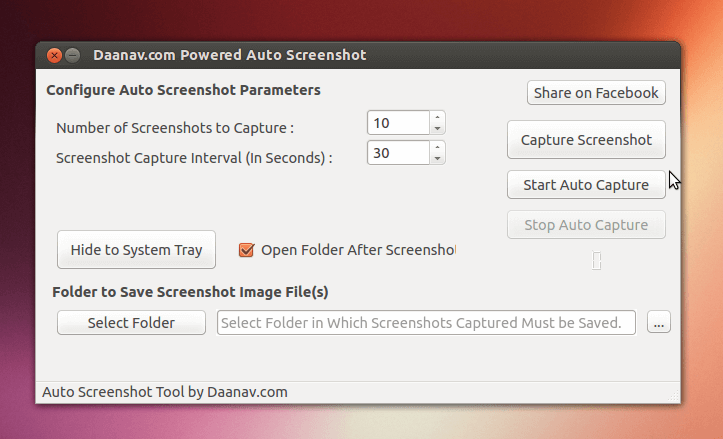
This Linux Auto Screenshot Application stores the Captured Screenshots to a User Configurable Location. All the Image Files stored by this Screen Capture Utility are stored as PNG Files and are named as per Date and Time at which the Screenshot is captured. You can download 32 bit or 64 bit version of the software of this Free to try Auto Screenshot Utility. Depending on which Linux Distro you are using, the appearance of the Linux Auto Screenshot Utility will appear different as evident from the Screenshots presented in this post. The Screenshots presented above have been captured on Linux Mint and the Screenshot presented below has been captured on Linux Ubuntu.

Auto Screenshot on Linux Ubuntu

Auto Screenshot on Linux Ubuntu

Download Auto Screenshot Utility for your Linux 64 Bit Computer and capture Screenshot(s) with eay to use Graphical User Interface. In case you are not sure whether you are running 64 bit or 32 bit Linux, Open up Terminal on your Linux and run the command uname -m and if output of the uname command indicates that you are using 32 bit Linux, Download the 32 bit version of Linux Auto Screenshot Utility. This is a Free to try Application and requires a one time fee of $10.00 to Unlock trial limitations of the Software. With every Software Licence, you do get Free Customer Support for 1 Year in which you get Free Upgrades to the Application helping you capture Screenshots on your Linux Computer in more controlled ways.

Free Screenshot Software

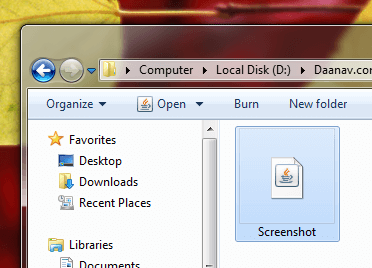
This post presents a Java based Screenshot Application with which you can capture and view the Screenshots in default png File Handler.  This Free Screenshot Software requires Java to be installed on your Computer. Whether you are running Windows, Macintosh or Linux, this Screenshot Application packaged in a .jar file can save you lots of time and efforts in capturing Screenshot. This Screenshot Application captures the Image of Screen and stores it as a .png file in temporary folder. Once the Image has been captured and stored. this Screenshot Software opens the stored .png file in default Application.

Screenshot Software for Free

Screenshot Software for Free

Download and use this Free Screenshot Software to view and store as many Screenshots as you want. There are no popup reminders, extra watermark or anything else in this Screenshot Software to stop you from capturing Screenshots. As this Screenshot Software is a Java based Application, you do not need to worry about any malware or virus in this java based application. Yes you must have at least Java 6 installed on your Microsoft Windows, Apple Macintosh or Linux Computer to use this Free Screenshot Software.

Screenshot Software on Apple Macintosh

Screenshot Software on Apple Macintosh

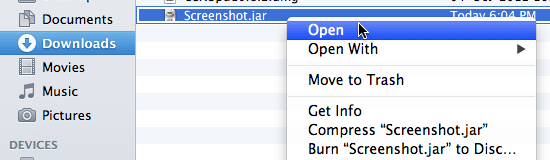
In order to use this Screenshot Software on your Macintosh, you would need to download the jar file specified in the earlier paragraph and then right click on the application to launch the Screenshot Software. This Screenshot Software has been tested on Macintosh Mountain Lion and other Macintosh versions like 10.7, Mac 10.8 and will work fine on the upcoming Apple Macintosh Operating System named Apple OS X 10.9 Mavericks.

Screenshot Software on Linux Ubuntu

Screenshot Software on Linux Ubuntu

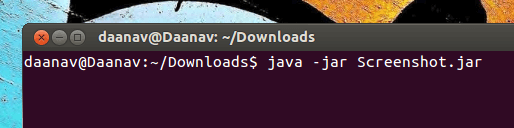
The Screenshot above displays this Screenshot Software being run from Linux Ubuntu Terminal using the java command. You would need to have Java Run Time Environment Version 6 to be installed in order to use this Screenshot Software. As this Screenshot Software is a standalone java application, you can assign a keyboard shortcut to it and launch it to capture screenshot instantly. The Screenshot Website displays more ways in which you can capture Screenshots on Windows, Linux and Macintosh Operating Systems without using any software applications.

On this Website you can find lots of software applications for Windows, Macintosh, Linux and Android. In case you are using Windows Operating System, the Auto Screenshot utility might be of interest to you as it allows you to capture Screenshots at regular intervals automatically. There are other Image Editing Applications on this website like Image Converter to convert Images from one format to other, Image Downloader to download images from internet, etc which are really useful tools for handling Image related stuff.

Linux File Renamer Utility

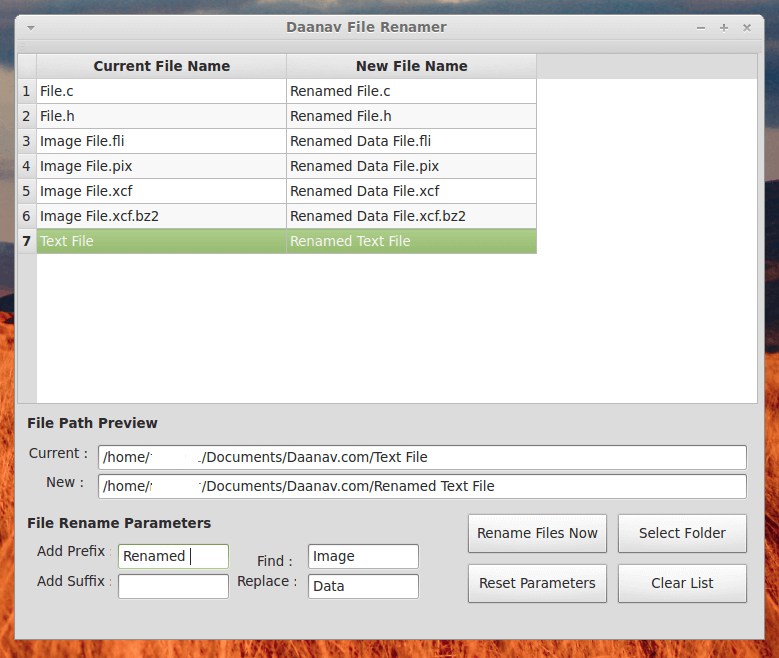
Rename Multiple Files on Linux Mint, Linux Ubuntu or other Linux Distro with Bulk File Renaming Utility for Linux. The Screenshot of this File Renamer Utility has been captured on Linux Mint and it should work with other Ubuntu variants of Linux as well. This Graphical User Interface Linux Application provides the Bulk File Renaming features from a single Window which is really easy to understand and use. In order to rename Multiple Files on your Linux Computer with this File Renamer Utility, all you need to do is tell this application about the files to be renamed. You can use drag / drop or use the select folder button to direct this File Renamer Utility to the files to be renamed.

Linux File Renamer running on Linux Mint

Linux File Renamer running on Linux Mint

The above screenshot can give you a fair idea of how the bulk file renaming is supported by this Linux File Renamer Utility. First of all note that there is a Select Folder Button at the bottom right corner of the above screenshot which allows you to select a folder containing files to be renamed. You can alternatively Drag Files / Folders from your Explorer Window onto the Main Window of this Linux Tool and the File Renamer will automatically load the list of files found in the selected Directory and it’s Sub Directories. Once you have loaded the list of files to be renamed, you can specify the File Rename Parameters and preview the new file name in the list of files. You can add Files from Multiple Folders and change File Names by clicking on the Rename Files Button.

Rename Multiple Files in Linux

Rename Multiple Files in Linux

Download Linux File Renamer with Graphical User Interface on your 32 Bit Linux Computer to Rename Files in Bulk. You can also Download 64 Bit version of this Linux File Renamer Utility to Rename Files in Bulk on your Linux Computer running Linux Mint, Ubuntu, Kubuntu, etc. In order to verify whether you are running 32 bit or 64 bit Linux, you can run the command uname -m and if the output of the uname command is like x86_64 then yes you are running a 64 bit Linux Operating System , else you are using a 32 bit Linux Operating System.

Adding Prefix to File Names and Changing File Names by doing a Search and Replace String Operation is supported by this File Renaming Utility. This is the first version of the software and yes it has been tested and before actually renaming the files loaded in the list, you can preview the new file names so that you are happy with the new file names. The screenshot of the software also displays both the renaming operations.

This Website has lots of other free applications for Linux, Windows, Android and Mac OS X Operating Systems to download. In case you also use Windows Operating System, you can have a look at Windows File Renamer Utility which works on most of the Windows Operating Systems and you can use the same version on 32 bit and even on 64 bit version.

We also provide Custom Linux Software Development Services and in case you feel that a customized version of this Linux File Renamer or anything might be useful to you, please do contact us for Custom Software Development Services. Finally do test the bulk file renaming functionality of this software on some test files and only when you do fully understand the features of the software, use the software to rename actual files. Remember that once the files are renamed, this Linux File Rename Tool does not have any undo functionality.

Custom Software Development

We do provide custom software development services at affordable fees. Whether you need a small custom software built to solve your task in hand or even a full product to be sold out to customers directly, we can provide you all the software services from our Panaji – Goa based Office in India. We work on various technologies including VB.NET, C#.NET, Visual Basic, Java, Cocoa, C++ to develop projects for Windows , Macintosh, Linux and Android. Depending on project requirements you can select cross platform technology to be used for getting the software developed. You can alternatively opt for programming languages which are meant to specifically create applications for your desired platform.

Software Development Services for Big and Small projects for Windows, Macintosh, Linux and Android

Software Development Services for Big and Small projects for Windows, Macintosh, Linux and Android

Our Custom Software Development Services are affordable and easily manageable. In order to have a look an idea of our capabilities, do have a look at free software applications displayed on this website. There are free applications on this website for Windows, Macintosh, Linux and Android. Yes lots of small application are available for download and each of the application provides some targeted task in best applicable manner. The Applications Developed by us are fully tested on various Microsoft Windows Operating Systems and work without any bugs / issues.

In case you have an existing software application communicating with Database, presenting data in reports , communicating with other applications or anything else, we can provide you support for your application to add new features / fixing bugs or even rewriting any existing application with better graphical user interface and more functionality. In order to hire our software developers for making changes to an existing application, you would need to provide us the source code of the application. Custom Software Applications do provide the required functionality, however when requirements change, a custom built application needs maintenance and we provide software maintenance services.

There are lots of applications available for almost every task now a days waiting for you to download them. In case you do have a specific task to be done and you are not sure of which software to use, you can avail our software consulting services to guide you to the best way to accomplish the work in best way possible. Contact Us now and let your Windows, Macintosh, Linux or Android do what you want it to do. Our Custom Software Development Services are not the cheapest available on internet, but we deliver the best software solution and yes we do provide extended software support as well.

Free Linux Software to Check for Dead Pixels

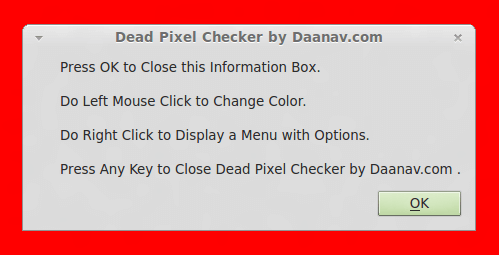
Checking for Dead Pixels on almost any latest Linux Distribution is easy, quick and free. This Free Dead Pixel Checker is released for free for 64 bit Linux versions such as Ubuntu, Linux Mint 13, etc. As Computers are getting more and more memory, a 64 bit version of the Linux Dead Pixel Checker is released by Daanav Softwares. Screen Colors are created using combination of Red, Green and Blue Colors. This Dead Pixel Checker displays a Full Screen Window with Red, Green and Blue Colors. The Color of the Window can be changed to next color using a Left Mouse Click on the Dead Pixel Checker Window and you can exit the software by pressing any key on keyboard.

Free Linux Dead Pixel Checker

Free Linux Dead Pixel Checker for 64 Bit Version of Linux

Download Free Dead Pixel Checker on your Linux 64 bit Computer and find dead pixels. This Free Software is distributed as a .zip file containing the Linux Application File, Launcher Application and a Readme.txt file specifying how to launch the Dead Pixel Checker on your 64 Bit Linux. In case your Display Device such as LCD Monitor, LED Monitor or other Electronic Display Device running any Linux Distro has multiple dead pixel, you might be eligible for a replacement.

In case you do have an Android Mobile or Tablet on which you would like to check for dead pixels, you can download the Free Android Dead Pixel Checker to check your screen for Dead Pixels. We have also launched free version of Windows Dead Pixel Checker Utility which does similar job of helping you to find dead pixels on your display device. All these applications basically display Red, Green and Blue Colored Full Screen Window which can be used to visually compare and review multiple display devices such as LCD Monitors / LED Monitors, etc.