Category Archives: Windows

Gaming Software for Windows Computers

Various Gaming Software Applications are presented here in this post which together makes your Gaming Experience much easier and better. All the Hardware and Software Tools on your Windows Gaming Computer provide you faster Gaming Experience, but Human Input is something you need to provide. In order to use your Gaming Computer to the fullest, you need to make sure that you are using it efficiently and in the best possible way. This post provides a list of Gaming Software Application which help you play Games of all kinds.
Gaming Software for Windows

Gaming Software for Windows

Human Input to a Computer like Mouse Clicking, Key Pressing, etc does not depends on the speed of your Windows Computer. Whether you are using latest Computer with latest Intel Processor and Graphics Card, Human Input (like Clicking Mouse Button, Pressing Keystrokes, etc) to your Computer can be made faster with the help of Gaming Software Tools. One of such Gaming Software Application is displayed in the Screenshot above. The Software Application displayed above allows you to create a Mouse Clicking Script with which you can Automate or Speed Up Mouse Clicking at pre-defined Screen Locations or even at current Mouse Cursor Location. Apart from Automated Mouse Clicking, the above mentioned Software can press Keystrokes, allow you to do Mouse Clicking with Random Time Delay and much more.
Best Auto Clicker for Gaming

Best Auto Clicker for Gaming

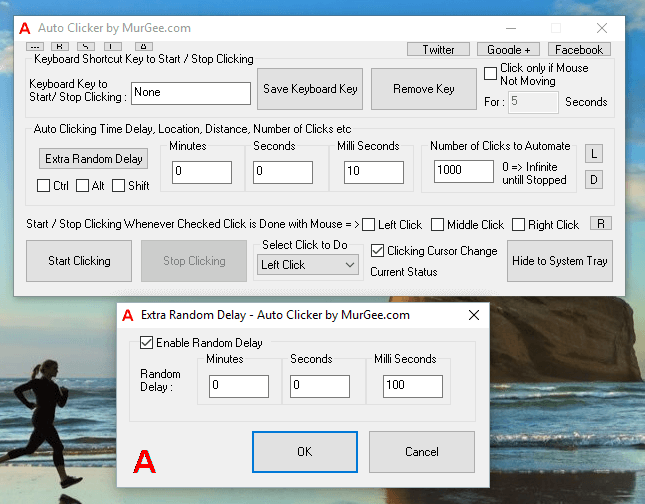
When you simply need to click faster in a Game, you can use the above displayed Software Application which has been designed specifically for Gaming. The Auto Clicker as displayed in the above Screenshot allows you to Automate Mouse Clicking. Controlling of Automated and Fast Mouse Clicking is supported with Physical Mouse Clicking and Keyboard Shortcuts. Yes it has got an inbuilt Key Presser, Advanced Auto Clicker, Fixed Screen Location and much more making it really the Best Auto Clicker for Games. Yes you can download and try it for free on your Windows Computers and lots of Gamers around the world are already using it as a helping hand for playing Full Screen and Browser based Games.
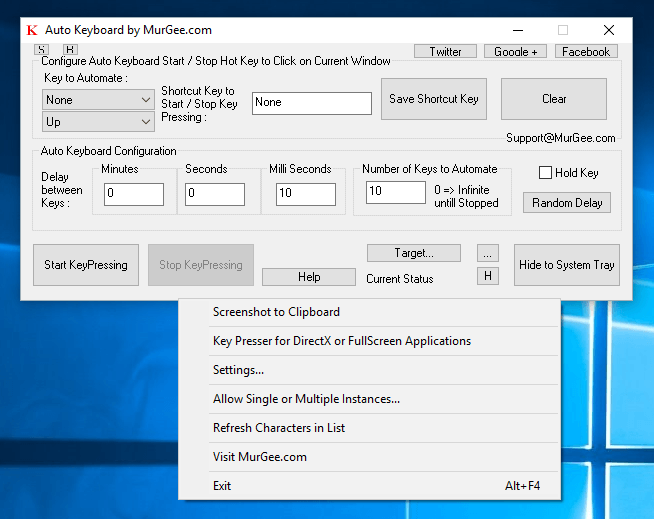
Auto Key Preser for Games

Auto Key Preser for Games

Apart from Fast Mouse Clicking, many times during the Game Play, you would need to press a single Keyboard key multiple times. Pressing a single Keyboard Key multiple times with configurable speed is now possible with above displayed Gaming Tool. Another Gaming Software designed for Direct X and browser based games is presented in the Auto Key Presser for Games post of this blog. Random Time Delay between consecutive Keys, Easy and intuitive configuration makes it a really powerful tool for handling Keystrokes when playing Games.
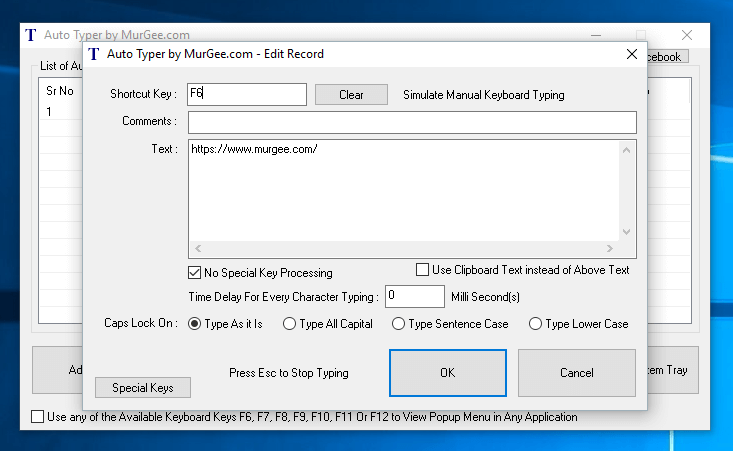
Auto Text Typer for Repetitive Text Typing in Games

Auto Text Typer for Repetitive Text Typing in Games

Typing Text Sentence from a keyboard requires hand and eye co-ordination and yes spelling mistakes can happen when you try to type faster. In case your Games requires you to type single or multiple Text Sentences lots of times and you need a way to Automate Text Typing in your Game, you can use the Auto Typer which is an easy to understand and use Keyboard Automation Software for Windows. With this Tool you can control the speed of Text Typing, avoid spelling and grammatical errors and overall speed up repetitive text typing.

Gaming Software Tools for Windows

Gaming Software Tools for Windows

All the above mentioned Software Applications are available on a Free to Download and try basis. Minimal fees of $5.00 only is required in order to unlock the trial limitations of the software. Selection & Usage of Appropriate Gaming Tool from the above list of Gaming Software Applications can really help you explore the power of your Gaming PC. Computers were designed to do work faster than humans and building a gaming Computer requires lots of planing and money and now it is easy to unravel the power of your Gaming PC with any of the above mentioned Gaming Software Tools.
Bulk SMS in India

SMS is the 2nd cheapest way of fast communication with Bulk EMail dominating the commercial usage. Now a days everybody has Mobile Phones and SMS is being used as a Marketing tool, although it is used by Banks and other Financial institutions for verification and informational purposes as well. Sending of SMS is regulated by Telecom Regulatory Authority of India (TRAI) in India. Mass SMS or Group SMS can be sent in many ways and few are enumerated below:

  1. Send Group SMS with the help of a USB Modem and appropriate Software controllable from your Windows Computer.
  2. Use your Mobile Phone and appropriate Software to create a Group and then send SMS Messages.
  3. Use SMS Gateway to send Promotional or Transactional SMS Messages.

Depending on the size of your SMS Campaign, you can select any of the appropriate methods to start your Bulk SMS Campaign. The Cost involved to send SMS Messages in Bulk depends on type of SMS Message and method you select for your SMS Campaign. Irrespective of the method you select for your SMS Campaign, you do need to arrange list of Mobile Numbers yourself, Yes you are responsible for the SMS Messages sent and you need to decide whether you need replies from the SMS Messages sent or you want a one way communication only.

Sending SMS from your Windows Computer

The cheapest and most controllable way to send SMS Messages is sending SMS Messages from your own SIM Card. You can send SMS to a group of people from your Windows 7 or later Computer and Bulk SMS Software. Apart from being the most controllable way, this method guarantees that all the SMS Messages sent are received by your recipients in a timely manner.

Bulk SMS Software to Send SMS Messages in Bulk in India and other Countries

Bulk SMS Software to Send SMS Messages in Bulk in India and other Countries

The SMS Messages delivered by this Software with the help of USB 3G or 4G Dongle and a SIM Card. Using a Pre-Paid SIM Card with SMS Packs is the cheapest way of sending SMS Messages. Depending on your Mobile Service Provider and the SMS Pack you select, you can send SMS Messages at the rate of 11 paise per SMS or even cheaper. As you do have the SIM Card used for sending SMS Messages, you can receive reply of SMS Messages from your recipients and the comfort of using a Windows Computer gives you total control over the SMS Messages.

As of writing this post, you can send 100 SMS Messages per day from any given SIM Card by utilizing the SMS Package. In case you do send more than 100 SMS Messages from any given SIM Card on a day, your Mobile Operator will charge you standard rate, which can be costly for SMS Campaign.

Bulk SMS with Mobile Phone

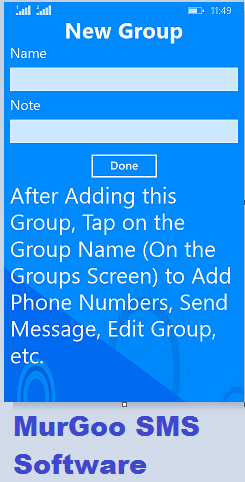
Yes you can send Bulk SMS with your Mobile Phone as well. There are lots of Free and Paid Software Applications available for Android, Windows Phone and other Mobiles which allow you to create a Group and then send SMS Messages. Although tempting it may sound, it can become difficult to manage large list of Mobile Numbers for SMS Campaign.

Bulk SMS Software for Windows Phone

Bulk SMS Software for Windows Phone

Sending Bulk SMS with Mobile is a good choice, when the number of people to whom you want to send SMS is a short list. Group SMS within Friends or family members to broadcast important event or something like that is the easy and manageable.

Use SMS Gateway to send Promotional or Transactional SMS Message

Using an SMS Gateway to send Bulk SMS Messages is useful when you do have a really large list of Mobile Numbers. The cost of using an SMS Gateway to send Bulk SMS Messages depends on the number of messages you wish to send. Many SMS Marketing Companies offer Bulk SMS Service for SMS Price ranging from 7 paise per SMS to 16 Paise per SMS. Yes you have to pay around 15 percent Service Tax as well.

Once you have signed up with an SMS Gateway for sending Bulk SMS, you need to use a Web based Interface to upload and manage your list of Mobile Numbers. There are two types of SMS Messages you can send with SMS Gateway including Promotional SMS Message and Transnational SMS Message.

Promotional SMS Messages come in 2 variants called as high priority and normal priority SMS Messages. Irrespective of the Time you want to send the SMS Messages, these SMS Messages can only be delivered from 9 AM to 9 PM. Mobile Subscribers who have subscribed to Do Not Disturb Registry will never receive your promotional SMS Messages.

Transnational SMS Messages are delivered instantly and cannot be used for Marketing purpose. before you can send Transnational SMS Messages, you need to send a letter to TRAI for Approval. This type of SMS Messages are normally used by Banks when making an Online Payment for SMS Verification.

Best way to Send Bulk SMS in India

SMS Marketing in India is a huge business and lots of companies are involved in this. Depending on the purpose of your SMS Campaign, you can select any of the above mentioned 3 ways to send Bulk SMS. In case you do have a small business and knowledge of Windows Computers, using the Bulk SMS Software is the quickest and cheapest way to send SMS in Bulk. In case you do want to send International SMS Message or you want to integrate your existing Desktop or Web Application with SMS functionality, then using the SMS Gateway can be a good choice. For sending Group SMS to a group of Contacts, Friends or relatives, using your Mobile Phone is the best way to send Bulk SMS.

Click Fast or let your Mouse Auto Click ?

When you got to Click really Fast or at various locations, you need to decide whether you want to manually click or take the help of a software which can Auto Click for you. This post presents 2 Software Applications which can help you click. The manual clicking method is equally good however trying to click faster and faster using various methods like Jitter click or any other method can be a pain and distract you from playing your favorite Game or using Web Application accurately.

Automate Mouse Clicking at Multiple Screen Locations with a Mouse Clicking Macro Script

Automate Mouse Clicking at Multiple Screen Locations with a Mouse Clicking Macro Script

Taking the help of a Software Application to click is the easiest and fastest way to do Mouse Clicking on your Computer. Apart from fixed time interval Clicking, you can also enable the Manual Clicking mode in which time delay between consecutive Mouse Clicks is random. Yes even the time delay between Mouse Down and Mouse Up can be random so that the automated Mouse Clicks to your Game, Web Application or even Direct X Game will appear as Manual Fast Clicking.

Auto Click Mouse Buttons

Auto Click Mouse Buttons

This is how Mouse Clicking works on Windows Operating System and is applicable to Web Applications, Flash Games, Desktop Applications and to most of Direct X Games. Only few Full Screen Applications or Games implement comprehensive Mouse Click detection.

  1. A Human presses the Mouse Button and then Releases the Mouse Button.
  2. The Mouse Down and Mouse Up events are read by the Operating System.
  3. For a Mouse Click (which is basically Mouse Down + Short Time Delay + Mouse Up Action), the Operating System takes into consideration the Active and Foreground Application and Mouse Cursor Location and sends the Mouse Click information to the Application.

As outlined in the procedure above, most Desktop Applications including Web Browsers get the Mouse Click information from the Operating System itself. When you do Fast Clicking, the Mouse Clicks are sent to the Active Application Window and it is their decision as to how to interpret the Mouse Click information.

Automate Mouse Clicking with Windows Automation Software

Automate Mouse Clicking with Windows Automation Software

When using a Software Application to send Automated Mouse Clicks to active Application Window, the Mouse Click information is sent to the Operating System and it is the passed onto Active Application Window by the Operating System itself. Effectively you can have a Mouse Clicking Application do Mouse Clicking for you even without a physical Mouse connected to your Windows Computer. Apart from Mouse Clicking a Windows Automation Software (such as given below) can Automate lots of other Human Input and Computer Control Actions.

Mouse, Keyboard and other Windows Automation Actions

Mouse, Keyboard and other Windows Automation Actions

Before downloading a Software Application to do Fast Mouse Clicking for you, you need to decide where and how you want the Mouse Clicking to be done. Apart from location of Clicking, you also need to decide how and when you want to do the automated Mouse Clicking. Finally you also need to decide as to how you want to control the Automated Mouse Clicking. The Software Applications presented here offer you various options to control each and every aspect of Automated Mouse Clicking.

Auto Click with Auto Clicker Utility

Auto Click with Auto Clicker Utility

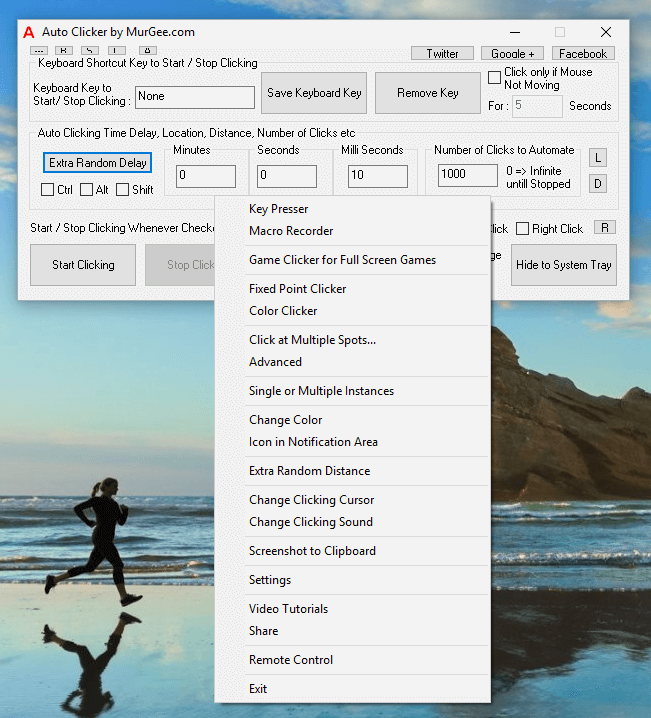
In order to Automate Mouse Clicking in Games which require lots of Mouse Clicking to be done at a single location, you can Auto Click with Auto Clicker. This Software allows you to Automate Mouse Clicking at Fixed or Random Time Delay Interval. You can Control the Automated Mouse Clicking with a Keyboard Shortcut, Physical Mouse Click or even configure it to Auto Stop after Clicking pre-configured Times.

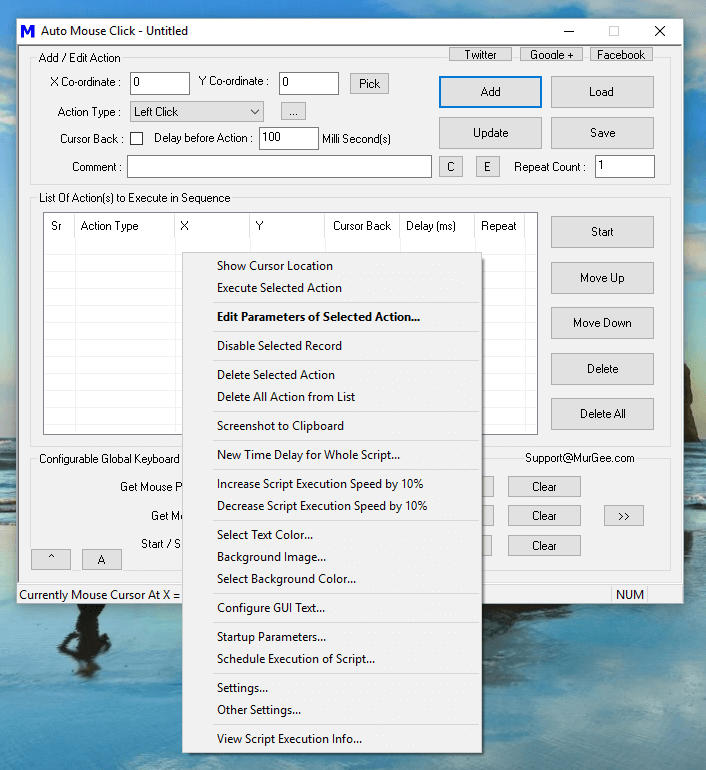
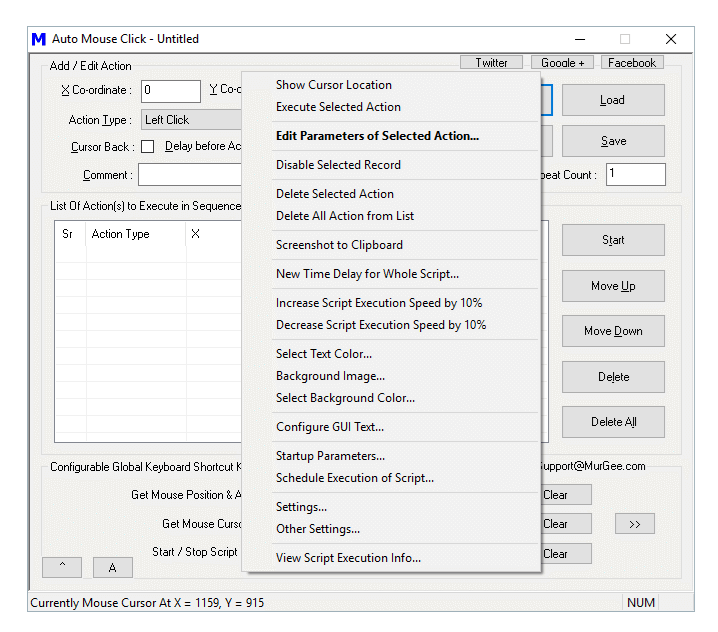
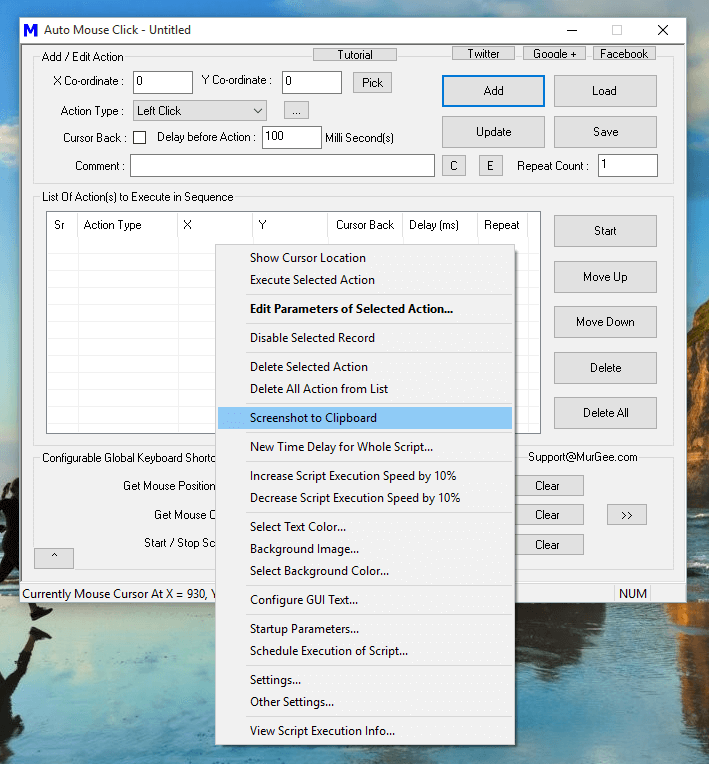
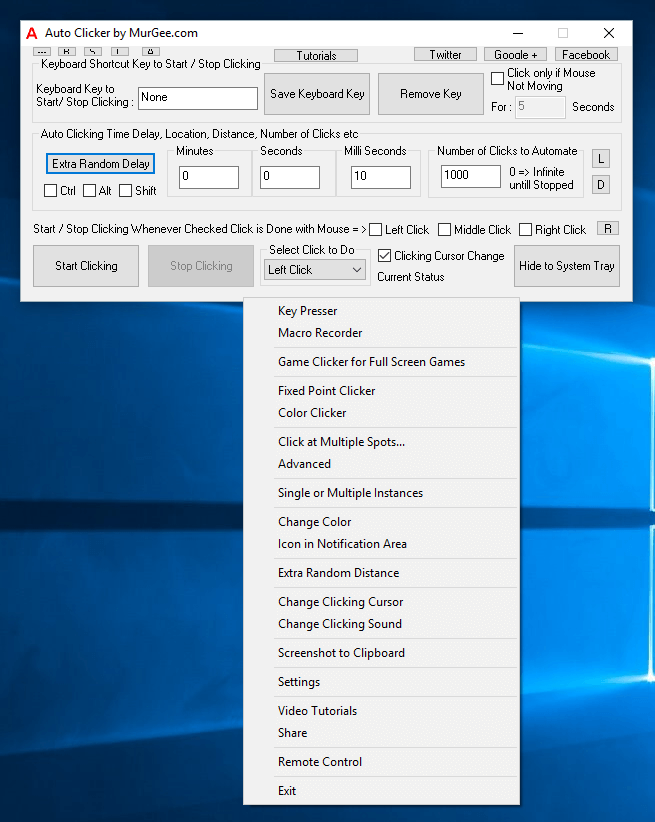
Apart from features visible on the main screen, there is lots of functionality available in the Right Click Menu as displayed in the screenshot above. Key Presser, Macro Recorder, Fixed Point Clicker, Advanced Mouse Clicker, Color Clicker and many more inbuilt utilities makes sure that whenever you need Automated Fast Mouse Clicking, you can easily and quickly launch the appropriate tool and let the Software help you in Mouse Clicking.

Create Mouse Clicking Macro Script with Auto Mouse Click

Create Mouse Clicking Macro Script with Auto Mouse Click

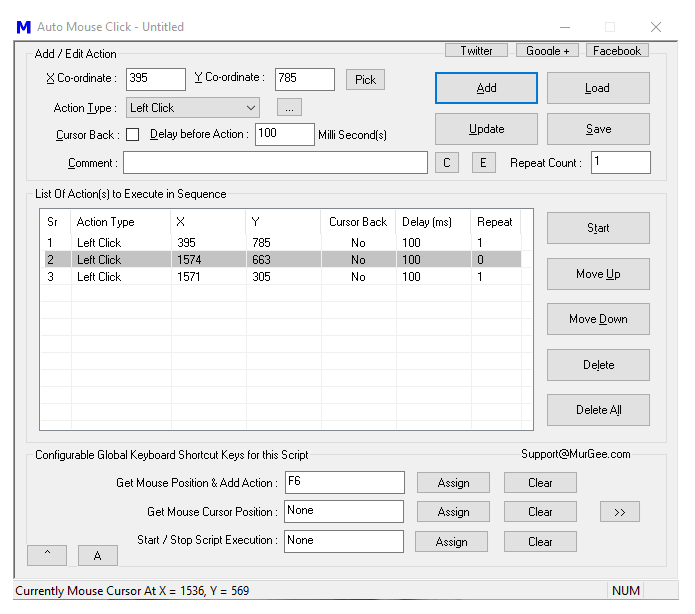
When you need to do Automated Mouse Clicking on multiple spots like various buttons on a Webpage, you can create a Mouse Clicking Script to do the Mouse Clicking for you. Yes creating a Mouse Clicking Script is easy with Auto Mouse Click and lots of Gamers across the world already use this Software to Automate Mouse Clicking in Games. In case you feel like it is too much work to plan Mouse Clicking at multiple locations, you can use the inbuilt Mouse and Keyboard Recorder, Record your Repetitive Actions and Automate them with a Global Keyboard Shortcut. Using a Macro Script to Automate Mouse Clicking gives you Speed & Accuracy in Automated Mouse Clicking.

Yes the above mentioned Software Applications are best in Automating Mouse Clicking. In case you are a Gamer, lots of your friends might be already using any of both of the above Software Applications. You can download the above mentioned Mouse Clicking Software Applications for Free and explore their features. Minimal Registration fees of $5.00 is required to unlock the Free Trial. Whether you are using a Windows 10 Computer or any other version of Microsoft Windows, you can fully enjoy the enormous features offered by Software Utilities with minimal efforts. Clicking Faster is now easy and fun and yes Jitter Click and other manual methods to click for long duration is a thing of past.

Mouse Clicking Script

Create a Macro Script to Automate Mouse Clicking easily and quickly. With Auto Mouse Click Software you can script any repetitive Mouse Clicking Task. Whether you wish to automate Left Mouse Click, Right Mouse Click, Middle Mouse Click, Double Left Button Click, 4th Mouse Button Click or even 5th Mouse Button Click, now you can simply run a Macro Script and let the Script do the Clicking for you.

Mouse Clicking Script to Automate Mouse Clicking at predefined Screen Locations

Mouse Clicking Script to Automate Mouse Clicking at predefined Screen Locations

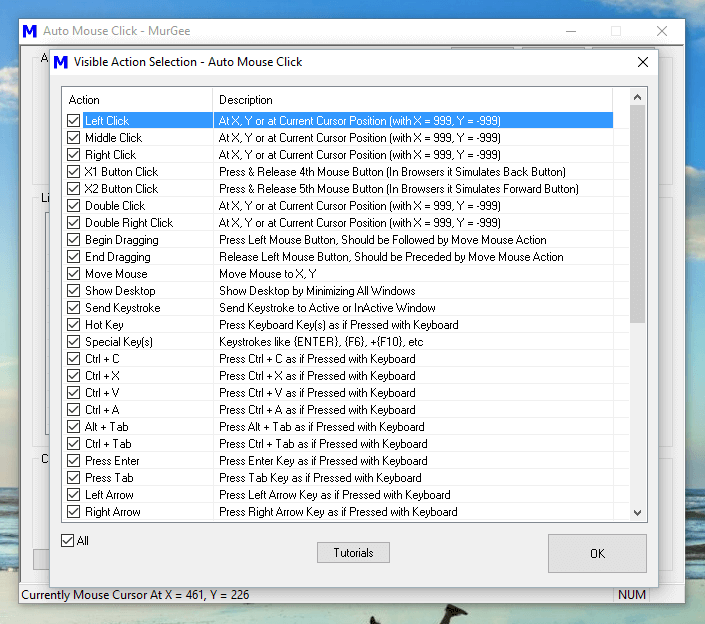
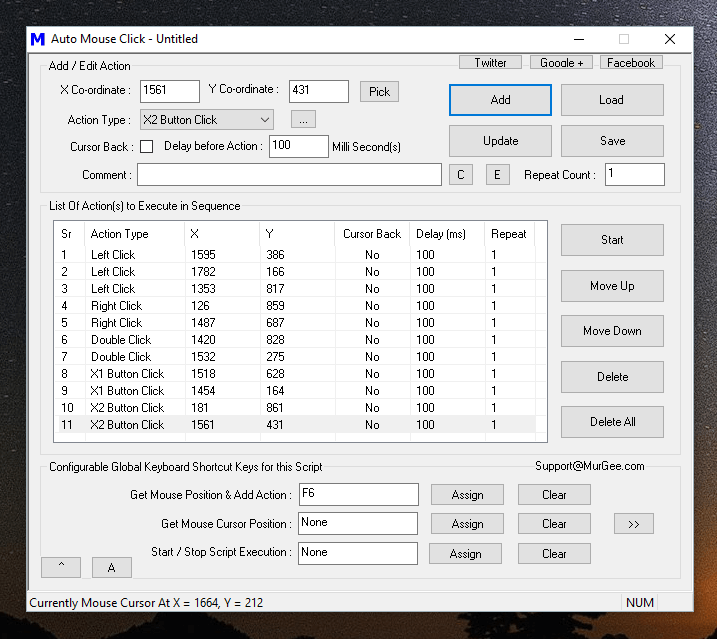
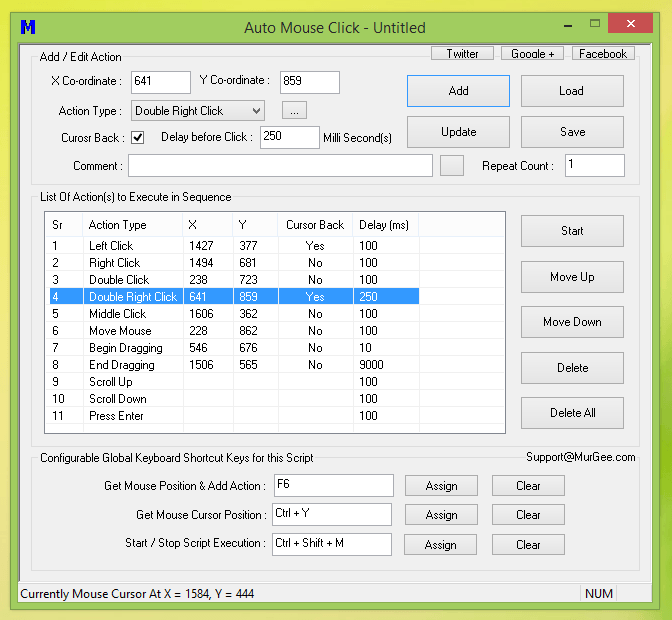
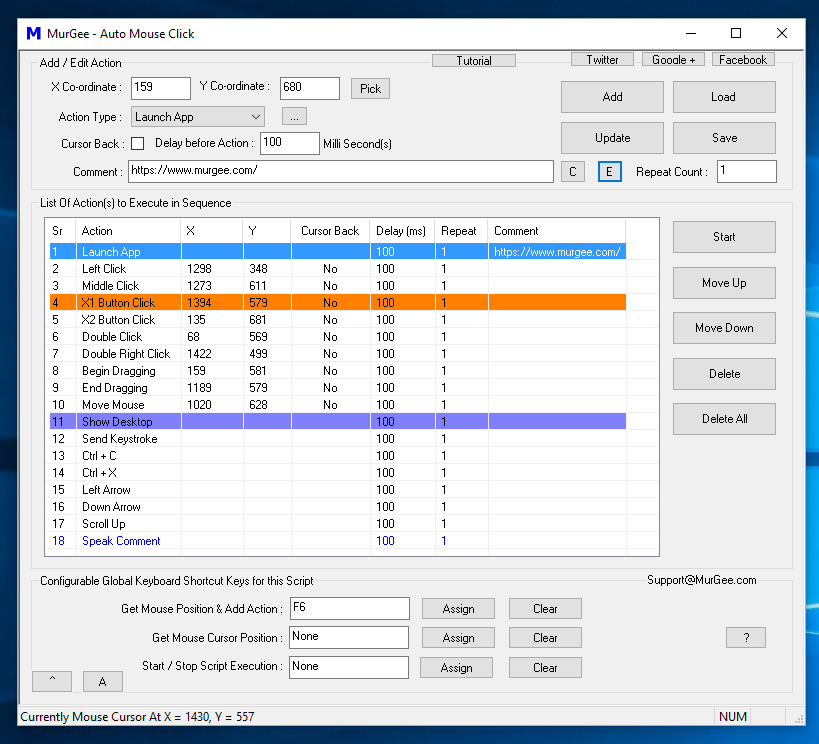
The above Screenshot displays a simple Mouse Clicking Script containing various types of Mouse Clicks. Yes you can Loop the Script so that it runs Multiple Number of times or let it loop indefinitely so that you can stop it later with a Keyboard Shortcut. Given below are the types of Mouse related Actions which can be Scripted with the Auto Mouse Click Software Utility.

  1. Left Mouse Click : This is pressing of Left Mouse Button and then Releasing it commonly known as Mouse Click.
  2. Right Mouse Click : This Mouse Action is pressing and then releasing the Right Mouse Button. The Right Click is commonly used to invoke the Right Click Menu or also known as Context Menu. Lots of Applications support automating Right Mouse Click with Keyboard Shortcut Shift + F10.
  3. Middle Mouse Click : Middle Mouse Click is basically pressing and then releasing the Middle Mouse Button. Depending on your Mouse Hardware, your Mouse may have a Scroll Wheel which you can manually Click and Scroll Up or Scroll Down.
  4. Scroll Up and Scroll Down : This Mouse Action is basically rolling the Scroll Wheel on your Mouse in Upwards or Downwards direction. Scroll Up and Scroll Down is a quick alternative to moving the Vertical Scroll Bar in upwards or downwards direction.
  5. X1 Button Click : This Mouse Action is basically pressing and releasing the 4th Mouse Button on your Mouse. Yes even if your physical Mouse does not have the 4th Mouse Button, you can still Automate this Mouse Action. Pressing the 4th Mouse Button is by default used in Browsers to navigate to the previous page.
  6. X2 Button Click : This Mouse Action is basically pressing and releasing the 5th Mouse Button on your Mouse. Yes even if your physical Mouse does not have the 5th Mouse Button, you can still Automate this Mouse Action. Pressing the 5th Mouse Button is by default used in Browsers to navigate to the previous page.
  7. Move Mouse : This Action relocates Mouse Pointer to a pre-defined Mouse Location instantly. As compared to physical Mouse Movement, this Automated Mouse Movement, relocates the Mouse Pointer instantly.
  8. Begin Dragging : This Mouse Action basically presses Left Button of Mouse and is commonly followed by Mouse Movement and then finally with releasing the Mouse Button in order to complete the Mouse Drag and Drop Process.
  9. End Dragging : Releasing of Left Mouse Button is done by this Mouse Action. The End Dragging Action marks the completion of a Drag and Drop Mouse Operation. In order to Script a Mouse Drag Drop, you would need 3 Actions in order. A Scripted or Automated Drag and Drop operation should have first Mouse Action as Begin Dragging, then Move Mouse and finally End Dragging.

As displayed in the list above you can create a Script to Automate almost every type of Mouse Action. Yes Mouse Actions are really easy way to Automate a Repetitive task, however the Mouse Clicking Script does not understands the Window or Screen Location to which it is sending Mouse Actions. Mouse Clicking Script can also be affected by changes in Screen Resolution, Position or Size Change of the underlying Window, presence or absence of a specific Window or Popup.

Mouse Clicking Alternative and Assistive Actions to Automate Repetitive Task

Mouse Clicking Alternative and Assistive Actions to Automate Repetitive Task

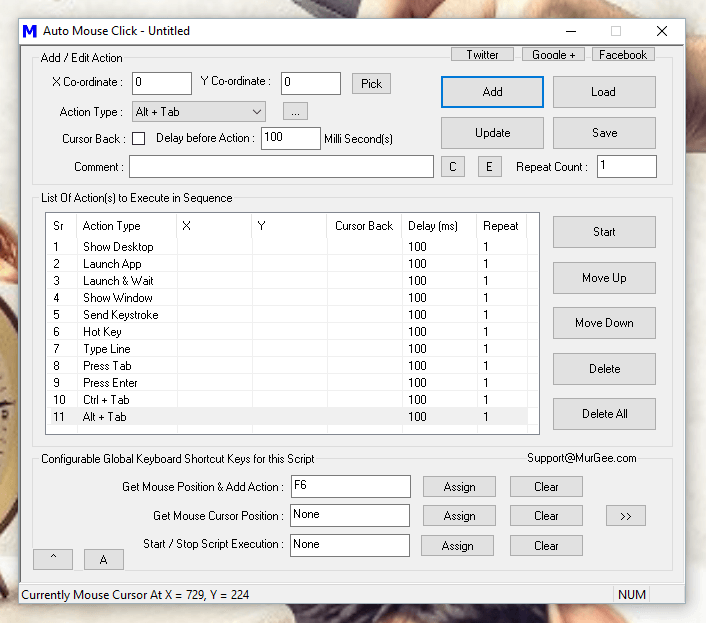
In order to assist the Mouse Clicking Script to accurately do the Mouse Clicking, you can utilize given below Script Actions whose outcome is not directly dependent on Screen Resolution. Yes you need to carefully plan your Mouse Clicking Script and utilize only those actions which are fit for your purpose.

  1. Show Desktop : This Action Displays Desktop so that you can Start running your Automation Script. The Action basically send the Window + M Keyboard Keys to Desktop in order to Show the Desktop.
  2. Launch App : This Action can be used to Open a Website in Default Browser, Launch an Application or Open an existing Document.
  3. Launch & Wait : This Action works similar to the Launch App Action, however it waits for the Application Launched to be Closed. Effectively your Next Action in the Script will not be executed until the Application Launched by this Action has terminated.
  4. Show Window : This Action displays a Window Identified by the Title of the Window. In case you have Launched an Application do do Mouse Clicking, but the Application’s Window is Minimized or Hidden, you can use this Action to Show the Window on your Computer’s Screen, so that your Script can do the Automated Mouse Clicking, Key Pressing, etc.
  5. Send Keystroke :  This keyboard Action allows you to send a single Keystroke to the Active Window or to Send a Keystroke to a Specific Window.
  6. Hot Key : In order to send combination of Keystrokes like Ctrl + C, Ctrl +V or even Ctrl + Shift + F10, you can use this Hot key Action to send Multiple Keystrokes to Active Window.
  7. Type Line : This Action simulates Typing of Text Sentence, pressing of special Keys like Enter, Tab, Function Keys or any combination of Keys. Once you have Added the Type Line Action to your Script, double click on the Action to view available options of associated help.
  8. Press Tab : With the help of Tab Key, you can Move the Input Focus to Next Control on your Desktop Application, Web Page or any other Application. In order to navigate to Previous Control, you can Automate Shift + Tab Key with the help of Hot Key Action.

There are lots of other Actions available in this Auto Mouse Click Application which can help you setup an unattended Automation Script to do repetitive tasks. In case you intend to use the Mouse Clicking Script in a Desktop Game using Direct-X or Open-GL technologies, you might wish to consider running the Admin Version of the Application.

Mouse Clicking Script with 1 Action Disabled

Mouse Clicking Script with 1 Action Disabled

The Actions added to the Script are run in order, however if an Action has been assigned a Repeat Count of more than 1, the next action would have to wait so that all previous actions have completed their assigned task. You can even disable any task by assigning the repeat count of 0 to any action and the Script Editor displays the Disabled Actions with different background color.

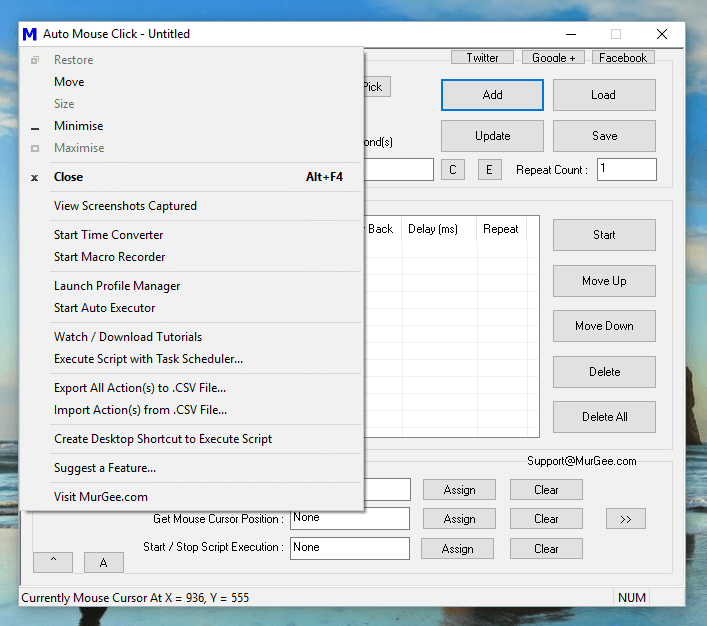
Right Click Menu of Auto Mouse Click Application

Right Click Menu of Auto Mouse Click Application

There is no coding required for using this Auto Mouse Click Application to Automate Mouse Clicking or other Actions on your Windows Computer. Scripting here relates to Automation Script containing Mouse Clicking and other Actions. This is a really sophisticated and yet easy to use Windows Automation Tool. Lots of Configurable Options are available in the Right Click Menu of the Software and there are some helper Tools available in the System Menu of the Software as well.

Download this unique Application and give it a try to Automate Mouse Clicking with a Script in a Game, Web Page or any other Software which is taking too much of your efforts. Creating Bots for your Game, Automated Text Typing and virtually anything can be Automated with this Free to Download and try Windows Automation Application.

Auto Click at Multiple Locations on Screen

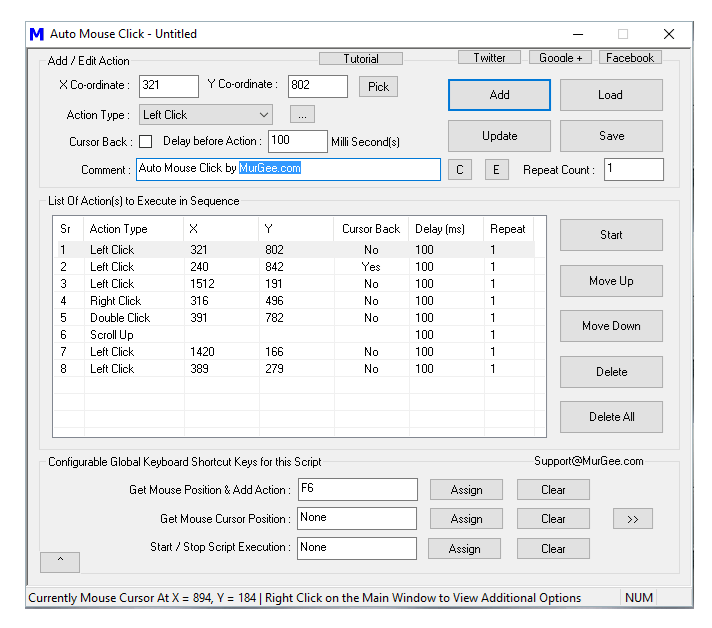
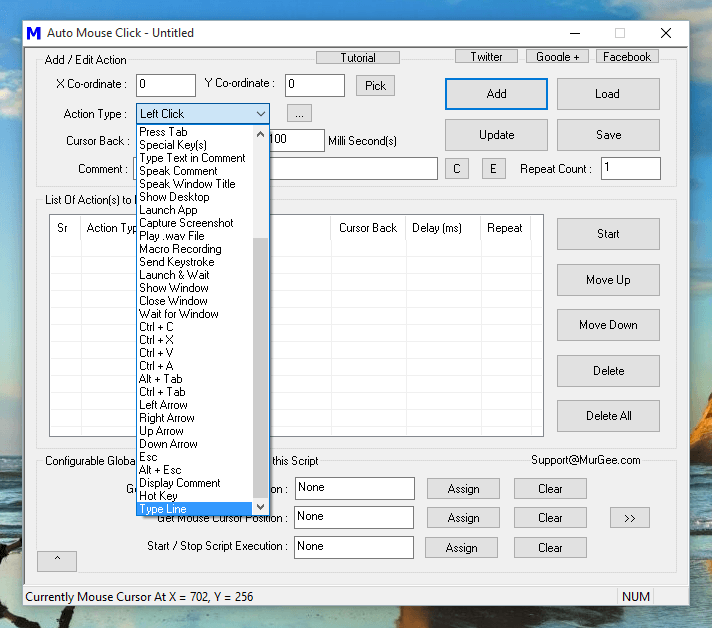
Now Clicking Automatically at Multiple Screen Locations is easy and fun with Auto Mouse Click Utility. You can Auto Click, Scroll, Move Mouse and even type as and when required easily by creating a Macro Script. Yes you can even Auto Click at fixed Screen Location numerous times or simply Auto Click at multiple Screen Locations. The given below screenshot displays a Macro Script which when executed clicks at different screen locations.

Auto Click at Multiple Locations

Auto Click at Multiple Locations

Each Screen Location is identified by Screen Co-Ordinates or in other words Pixel Location. Note that in the above screenshot, there are 8 different actions added to the Macro Script. Few of the Automation Actions in the above Macro Script are to Click at Screen Location identified by X and Y Screen Co-Ordinates. Other Macro Actions offer allow you to Automate other Human Actions like double click with Mouse, Scrolling Mouse Up, etc. There are various other Automation Actions available in this Automatic Mouse Clicking Software. Another post of this blog titled Auto Click and Type offers details on what other Mouse and Keyboard Actions are available in this Automatic Mouse Clicking Software. Rest of this post talks about what are Screen Co-Ordinates, how to Auto Click at Multiple Locations by creating Simple Script and more.

Screen Co-Ordinates to Identify Screen Location

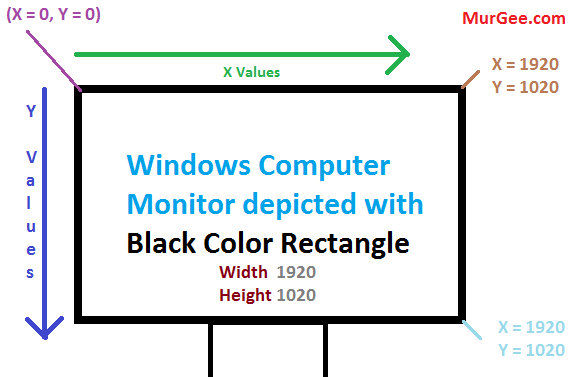
Every Pixel on your Windows Computer Screen is identified by Numbers. In case you are using a Multiple Monitor Windows Computer, the values of Screen Co-ordinates start at the top left corner of your Primary Monitor and the X co-ordinate values increase by 1 for every pixel when moving towards bottom of the screen. Similarly the value of Y co-ordinate increases by 1 for every pixel when moving towards right hand side. The total number of pixels are identified by Screen Resolution. The given below screenshot visualizes the Screen co-ordinates for a Windows Computer Screen.

Screen Co-ordinates of a Windows Computer

Screen Co-ordinates of a Windows Computer

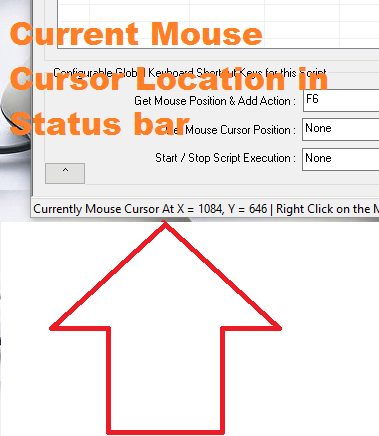
The above Screen Co-Ordinate system makes sure that each Pixel Location on your Windows Computer has a unique identifier. In order to confirm your understanding of your Windows Screen Co-ordinate system, do have a close look at the status bar of the Auto Mouse Click Software which displays the co-ordinates of your current mouse cursor position.

Automatic Screen Co-Ordinates in Mouse Clicking Software

Automatic Screen Co-Ordinates in Mouse Clicking Software

Add Mouse Clicks to Script with Keyboard Shortcut

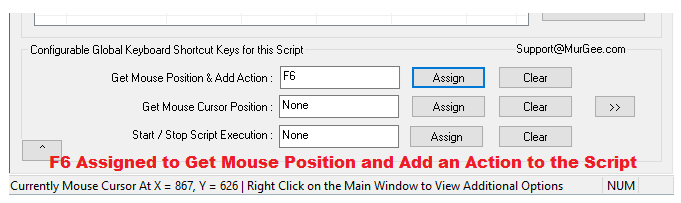
In order to Auto Click at Multiple Screen Locations, you need to tell the Software about the number of Mouse Clicks to do and Screen Location of every Mouse Click. Adding Mouse Clicks to the Macro Script is easy with a configurable keyboard shortcut available at the bottom of the software. As displayed in the given below screenshot, the keyboard shortcut F6 has been Assigned to pick Screen Location of current Mouse Cursor location and add a Mouse Click to the Script. The Screen Co-ordinates are ignored for Automation Actions which do not require them like Scroll Mouse, Type Keys on Keyboard, Open Website, etc.

Keyboard Shortcut to Add a Mouse Click to the Macro Script

Keyboard Shortcut to Add a Mouse Click to the Macro Script

Once you have added Multiple Mouse Clicks to the Script, you can execute the Script. Executing the Script would instruct this Windows Automation Software to Automatically Click at the pre-defined screen locations. Yes there are lots of video tutorials available in the software to easily get you started.

Steps required to Auto Click at Multiple Locations

The given below steps outline to procedure to get started with this Automatic Mouse Clicking Software. You can also visualize the steps as Record Mouse Clicks, Save Mouse Clicks in a Macro Script File and then execute the Script File and in turn Automate Mouse Clicking at Multiple Locations.

  1. Download & Install the Auto Mouse Click Software.
  2. Launch the newly installed software from the Desktop Shortcut or from Programs Menu.
  3. Assign a keyboard Shortcut to get Mouse Position and Add Action to the script as displayed in the screenshot above.
  4. Move the Mouse Cursor Manually to the Screen Location where you want this Mouse Clicking Software to Click.
  5. Now press the Keyboard Shortcut assigned in Step 3 above.
  6. Repeat Step 5 for other Mouse Clicks you wish to add to the Script.
  7. Now Click on the button labelled Start and watch this Mouse Clicking Software Automating Mouse Click at all the Screen Locations added to the Script.

Apart from Clicking at Multiple Locations, you can use this software to Automate lots of other commonly used tasks on Windows. Few of the other Windows Automation Actions supported by this Software are as enumerated below.

  • Mouse Clicking, Mouse Moving, Mouse Scrolling and Double Clicking can be done with this Windows Automation Software.
  • Pressing single Keyboard Keys, typing long text sentences and pressing of combination keys like Ctrl + A, Ctrl + V, etc can be done as well.
  • Opening a Website, Starting an Application and waiting for it to finish or opening an existing document with it’s default Application can be Automated as well.
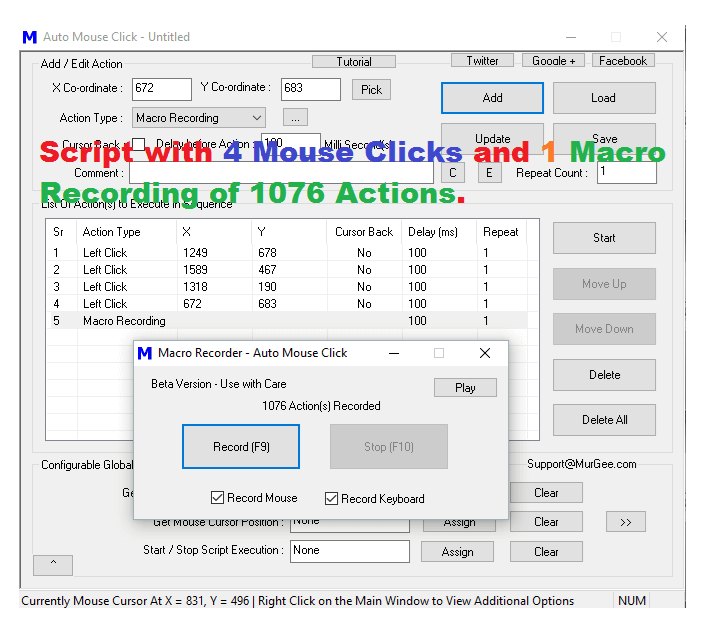
  • You can even embed a Macro Recording containing Mouse and Keyboard Actions as a single Action in the Script.
  • Adding Audible or Visual Alerts with Text to Speech conversion or playback of a .wav file or adding a popup can be done easily as well.
  • For logging purpose, you can add a Capture Screenshot Action to the Script, so that whenever the Macro Script is executed, a Screenshot is stored on your Hard Disk Automatically.

Yes there is still many more features in this nifty Free to download & try Application for Windows. When using the Automatic Mouse Clicking for a Desktop Game, Direct X Game or any other MMORPG Game, running the Auto Mouse Click Software as Administrator offers complete control of the Game. For sending Automated Mouse Clicks to browsers or other Application running under the signed on Account, you can use the Version Selector and run this Windows Automation Application under signed on user credentials.

Macro Script with Automatic Mouse Clicks and a Macro Recording

Macro Script with Automatic Mouse Clicks and a Macro Recording

There are no limitations in the number of Mouse Clicks you can add to any given Script. In case you want to repeatedly Click at large number of Screen Locations, do consider using the Embedded Macro Recording feature. Yes you can even divide your Mouse Clicks in multiple Macro Script Files and execute any Macro Script from any other Macro Script.

Turn Off Monitor Utility

Turn your Monitor off whenever required with Turn Off Monitor Utility for Windows. Use a Desktop Shortcut, Keyboard Shortcut or other options to quickly Turn Off your Computer’s Screen. Whether you are using a Laptop or a Desktop Computer, the Software Application provided here is really handy tool to save Power and give you full control over your Computer.

Download Turn Off Monitor Software Utility

The Turn Off Monitor Application is provided on a Free to Download & try basis. You can Download and Install the Software right now for Free without any email registration. The Utility does not have any nagging screen or reminders for payments and is a fully functional software application. Yes the Turn Off Monitor Utility works well with Windows 10, Windows 8.1, Windows 8, Windows 7 and other Windows Versions.

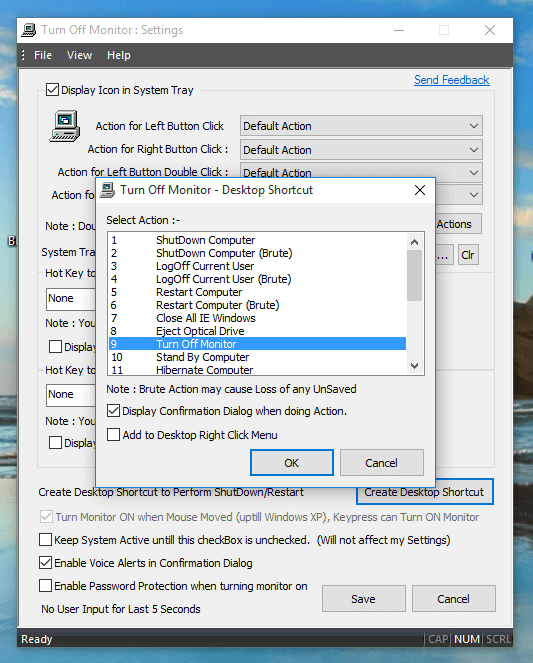
The Installation procedure is quite simple and is a standard software setup. The above Video Tutorial displays how you can Install the Turn Off Monitor Application and get started. An Icon in System Tray is created by the software allowing you easy control over the software features. Just Right Click on the System Tray Icon of the Turn Off Monitor Utility and use any of the numerous features offered by the software. For easy Access, you can also create a Desktop Shortcut to Turn Off Monitor quickly and easily.

Turn Off Monitor from the System Tray Menu, Create Desktop Shortcut to Turn Off Monitor and much more

Turn Off Monitor from the System Tray Menu, Create Desktop Shortcut to Turn Off Monitor and much more

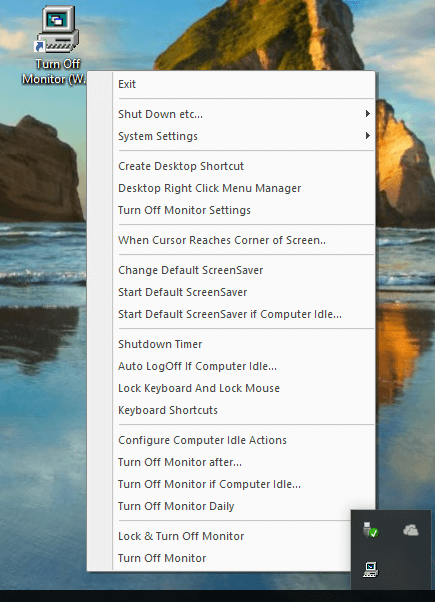
The above screenshot displays default System Tray Menu of the Turn Off Monitor Utility. Yes you can even customize the System Tray Menu of this Utility to reorder or remove menu commands from the menu. Once the Monitor is turned off, it can be Switched On by any of the given below options

  • Move Mouse Cursor to Turn On Monitor Automatically.
  • Press any Key on Keyboard to Turn On Monitor and start using your Windows Computer.
  • The Monitor can be turned On by any application running on your Windows Computer as controlled by that application when your attention to your Computer Screen is Required.
  • Windows Operating System can also Turn On your Monitor if there is any Critical Alert and your Attention is required.

In case you are using Multiple Monitors connected to your Windows Computer, all the enabled Monitors would be Turned Off by this Turn Off Monitor Utility. Yes switching On your Multiple Monitors can be done as outlined above for a single Monitor Windows Computer. The Dual Monitor Software (MurGeeMon) offers more control over Dual or Multiple Monitors and is available for Download on a Free to Download and try basis. Apart from helping you on managing Multiple Monitors, the MurGeeMon Utility can also assist you in Moving Mouse Cursor across Screens, Manage Wallpapers, provide you Keyboard / Desktop Shortcuts to Control your Windows Computer.

Create a Desktop Shortcut to Turn Off Monitor

Desktop Shortcuts are the easiest ways to communicate with your Windows Computer and now you can create a Desktop Shortcut to Switch Off your Monitor without sending Computer to low power state like Hibernation or Sleep Modes. By just Switching Off your Monitor, you can still have you Computer download files for you, Play Music with an Audio Player or do any other processing.

Desktop Shortcut to Turn Off Monitor

Desktop Shortcut to Turn Off Monitor

When creating the Desktop Shortcut to Turn Off Monitor, you can optionally enable Audible and Visual Confirmation so that whenever your Monitor is turned Off with Desktop Shortcut, you are well informed. In case you would like to schedule the Automatic Turning Off your Computer’s Screen, you can copy the Command Line of the Turn Off Monitor Desktop Shortcut and call it from a Batch File or from any other Application.

Blank Screen instead of Turning Off Monitor

Using a Blank Screen has it’s own advantages and disadvantages over Turning your Monitor Off. When Monitor is turned off, it can be turned on again by simply moving mouse , a keystroke or by a software application. A Blank Screen instead can be controlled in a much more sophisticated way. The Blank Screen which is basically a Black Window limits the amount of Glare coming out of the Monitor, however it does not saves power.

Black Screen Utility with Turn Off Monitor Utility

Black Screen Utility with Turn Off Monitor Utility

A Black Screen Utility is also included in the Turn Off Monitor Utility which can be launched using the Desktop Shortcut as displayed in the Screenshot above. using the Windows Lock Screen can also be an alternative, however the Black Screen Utility is much easier to control and has been designed to handle the scenario where Turning Off the Monitor might not yield the desired results.

Turn Off Monitor Utility – Other Features

There are lots of other features offered by this small and useful utility to Turn Off Monitor. You can take full control over the power state of your Windows Computer with this Utility. Given below are few of the other features offered by the Turn Off Monitor Utility. Most of the other features are controllable from the System Tray Menu, however a few features are available in only Turn Off Monitor Settings Screen.

  • Create Desktop Shortcut to Turn Off Monitor, Shutdown or Restart Computer.
  • Automatically Sign Out whenever the Computer is Left Inactive for more than a pre-defined duration.
  • Start Screensaver instantly or Launch the Control Panel Applet to Configure Screensaver Settings easily.
  • Use Keyboard Shortcut to Turn Off Monitor and optionally enable Visual and Audible Confirmation.
  • Add Menu Commands to Right Click of Desktop for quick access to various features of this Turn Off Monitor Utility.

Yes there is still lots more offered by this System Utility and is available for you right now. Download and try out the Turn Off Monitor Utility on your Windows 10, Windows 8.1, Windows 8, Windows 7 or even on Windows Vista Computer and take full control of your Monitor(s).

Automate Repetitive Tasks on Windows

Repetitive Tasks can be Automated on Windows with the help of Windows Automation Tools, by coding in a Programming Language or with the help of Microsoft provided tools and scripts. This post presents Windows Automation Application which can Automate GUI with the help of Mouse Actions, Keystrokes and other actions which are done manually.

Automate Repetitive Tasks on Windows

Automate Repetitive Tasks on Windows

The best part of using the Automation Applications presented here is that all application are available as a Free Download, are easy to understand and you can start Automating your Repetitive Tasks within minutes. Other technologies provided by Microsoft are also discussed in this post which you can utilize to construct your Windows Automation Macro Script.

How to get Started to Automate a Repetitive Task

First of all you need to plan the input required to your Computer and then evaluate the output generated in response to your Actions. For best results, divide the repetitive task into smaller tasks so that you can manage and control your complete task. Automated Testing of Software Applications is carried out in this manner where manual input can be tedious or error prone. Yes Automating a long task indeed saves you Time, Efforts and is less Error Prone.

Cheap Automation Software for Windows

Cheap Automation Software for Windows

Once you have planned the input required, expected output of your Automated Input and have accounted for Error Conditions, you are ready to move on and proceed onto next step of selection of available technologies. Depending on the nature of your Repetitive Task, given below are few of the available tools and scripts to assist your in your Windows Automation Tasks.

  • Use Batch Files (*.bat) which are basically text files with an extension of .bat and can be used to group multiple DOS Command or run Applications with Command Line. Execution of a .bat files can be done from Command Prompt, from another Batch Files or from an appropriate Application which can Launch or Execute Batch Files.
  • Using API Provided by Microsoft (e.g Windows Automation API) and programming your own Macro using a Programming language like C++, VB.NET, etc. This requires coding and learning a programming language can take a while.
  • Powershell is a Microsoft provided Scripting Language which offers your various ways to Automate Windows Applications or Automate Microsoft Windows itself. Learning Powershell may require lesser efforts as compared to learning a Desktop Application Programming Language like C++, VB.NET, C#, etc.
  • You can also use Javascript and Windows Script Host to create a Macro Script and Automate various Windows Tasks like Managing Files and Folders on Windows, Write Data to a Text File or Read Data from a Data File and take appropriate Action.
  • Use Windows Automation Tool titled Auto Mouse Click which can Automate Mouse Movement, Mouse Clicking, Key Pressing, Launching of Application, Capturing Screenshot and much more. This Windows Automation Tool is provided on a Free to Download and try basis and has been featured in our Cheap Automation Software post of this blog.

Lots of Video Tutorials are available for the Auto Mouse Click Application in the Software itself, however if your repetitive task requires lots of Keyboard Typing or pre-defined or distinct text sentences, do make sure to check out the Automated Data Entry post. Whether you need to Automate single Keystrokes, Combination of Keystrokes, Typing of Text Sentences or even Typing of Text Sentence by reading Data from a .txt File, this Windows Automation Application supports everything.

Auto Mouse Click - Windows Automation Software to Automate Repetitive Tasks

Auto Mouse Click – Windows Automation Software to Automate Repetitive Tasks

Watch quick feature tour of this Windows Automation or Download the Free Trial of the Software and Automate any Repetitive Tasks. Yes you can Automate Windows 10, Windows 8.1, Windows 8 and even Windows 7 with this small and yet powerful tool. The above Screenshot displays few of the available Actions which when combined together in a Script can Automate any Repetitive Task on your Windows Computer. Yes you can even group Actions in multiple scripts and manage individual Script to manage complex Tasks.

Automate Data Entry with Typing and Mouse Clicking Software

Automation of Data Entry into Web forms, Desktop Applications and other Applications can now be done with Automated Typing and Mouse Clicking. Now Data Entry Automation Software is within reach of everybody’s pocket and the Windows Automation Software which can be used for Automated Data Entry is now available for Download. The Automation Tool presented here is now suitable for Data Entry tasks where you have pre-defined pattern of Data Entry and only Data changes. Using an Automation Software for Data Entry requires planning and rest of the complexities of Automated Text Typing, Mouse Clicking, etc is taken care by a really cheap software as presented below.

Data Entry Automation Software

Data Entry Automation Software

Manual Data Entry is all about Typing, Mouse Clicking, Navigating between Screens, Form filling and the whole process is repeated multiple times. Imagine if the whole process of Data Entry can be repeated, how much time and efforts will it save for you ? Software Automation is basically a technical word implying an Automation Software doing some tasks automatically for you.

Auto Mouse Click as Data Entry Automation Tool

Auto Mouse Click as Data Entry Automation Tool

Practically speaking it is one software communicating with other software and doing the Manual task for you. The best part of using Auto Mouse Click as Data Entry Automation Software is that it can be customized as per your requirements. Yes there are lots of pre-built Actions like pressing Keyboard Keys like Enter, Tab, Alt + Tab, Ctrl + Shift + Tab, Automated Text Typing, Automated Mouse Clicking and much more as visible in the above screenshot.

How to Automate Data Entry with Software

The Software Application presented here allows you to Automate Manual Input to Keyboard. When using this Software as a Data Entry Software, you can utilize the Text Typing and Mouse Clicking features of this software. Yes you can enable or disable any features from within the software taking into consideration the type of Data Entry Steps required in your Repetitive Data Entry procedure.

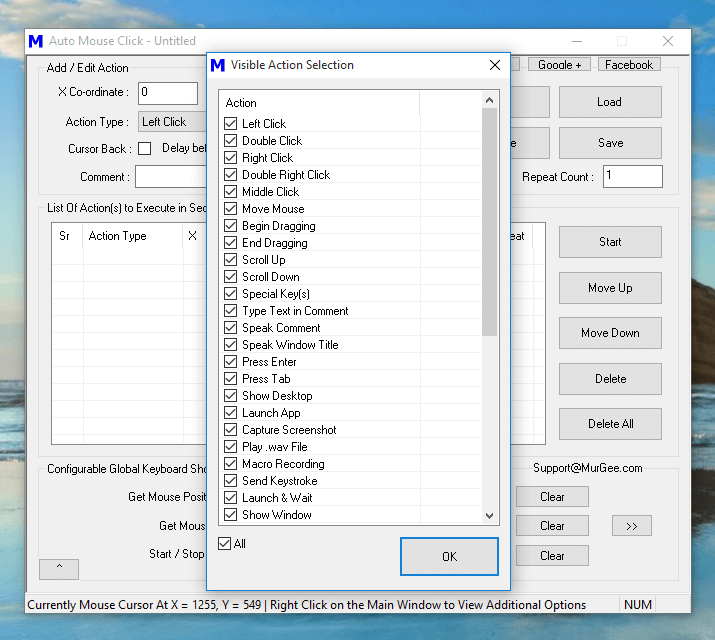
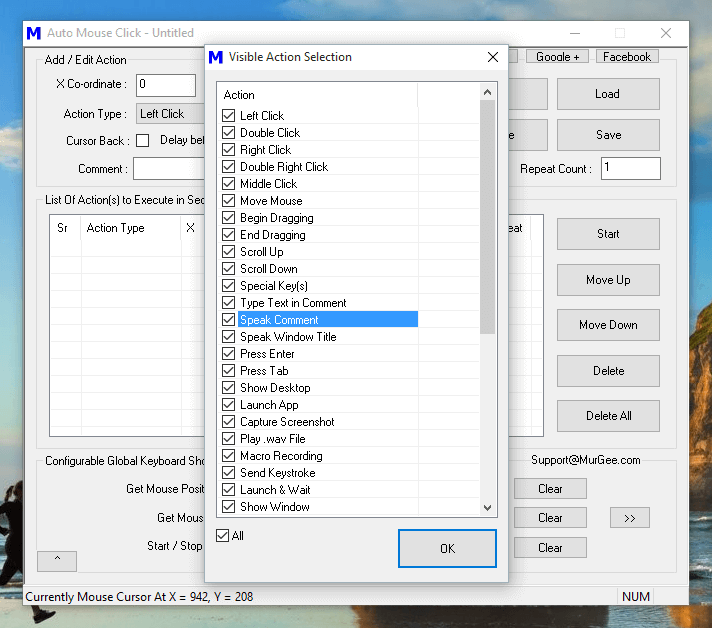
Enable or Disable Macro Script Actions Related to your Data Entry Task

Enable or Disable Macro Script Actions Related to your Data Entry Task

In case you would like to view a Video Demonstration, do watch the Data Entry Automation Software Video Tutorial which displays how quickly and easily you can get started and start using this unique application to Automate your Repetitive Tasks. Yes there are inbuilt Free Video Tutorials in the software to assist you at every step. Given below procedure outline steps required to get started and Automate your Repetitive Data Entry or other tasks.

  1. Download and Install the Auto Mouse Click Application on your Windows Computer.
  2. Once you have Installed the software, do explore the inbuilt video tutorials to get started or watch the above mentioned Data Entry Automation Software Video to find how easily you can get started.
  3. Create a few simple scripts doing Automated Mouse Clicking or Text Typing. Note that the Automatic Typing done by the software can have either a pre-defined text or lines of text from a text file. In case you have text data in .csv files which is required for Automated Data Entry, you would need to modify the .csv file so that it contains only one column with text data ion every line.
  4. In case you do have a complex and repetitive task in hand, you can add a Macro Recording to the Script and proceed ahead.
  5. Once you are comfortable with the software, plan you Automated Data Entry. Remember that this software performs actions as defined by you and it has got no Artificial Intelligence or something like that. You need to plan so that repetitive Data Entry Tasks can be performed by Auto Mouse Click Software and you can use it as Data Entry Automation Software.
  6. In case you need assistance you can Hire Automation Experts by writing to customer support to assist you in planning Automated Data Entry and create Automation Scripts.
  7. Once your Automated Data Entry Scripts are ready, do test them with dummy data so that any logical error can be handled. Do Test Every Script so that it works exactly as you want it to work and finally help you in Automated Data Entry.
  8. After successful testing, review everything again and finally deploy a script to perform Data Entry Automation. Do monitor the script and the complete process carefully and make sure everything works as planned.

What kind of Manual Input to Computer can be Automated ?

Virtually everything can be Automated which can be provided as input to a Computer by this Software Application. The inbuilt Macro Recording can be used to Record and Playback Mouse and Keyboard Actions which are major time consuming tasks in Data Entry. Apart from Macro Recording, Mouse Clicks of every type, All Keyboard Keys (single, multiple or combination keys like Alt + Tab, Ctrl + C, Ctrl + V etc), Managing Application Windows and much more can be Automated.

Search Image on Screen and Auto run Macro

Search Image on Screen and Auto run Macro

You can even execute scripts based on Image Detection to handle changes on Screen. Given below list displays few Actions which are available in the Software to assist you in Automated Data Entry and other Windows Automation Tasks.

  • Read Text from a .txt File and Type it onto Active Application Window.
  • Press Keyboard Keys like Tab, Enter, Ctrl + C, Ctrl + V, Shift + F10, Ctrl + Shift + D, etc.
  • Type Text Sentence onto Active Application Window whether it is a Web Form or a Desktop Application.
  • Automate Mouse Clicking at pre-defined Screen Location. Left Click, Right Click, Double Mouse Click and other types of Mouse Clicking can be Automated.
  • Automation of Drag and Drop and Scroll Wheel is also supported.
  • Launch an Application and wait for it to close or simple Launch an Application and move onto next Macro Script Action.
  • Wait for a Window to Appear on Screen and once the pre-defined Window appears on Screen, continue to the next Script Action. This Action can be really useful for validating a Desktop Application behavior where the time required to complete a task may vary.
  • Capture a Screenshot and save it automatically on your Windows Computer. This Action can be used to Analyze Automated Data Entry Script once the Script has finished execution.
  • You can add Audible alerts like Play an Audio File or use Text to Speech Conversion to inform you about a milestone or error condition in Data Entry Script.

With Appropriate planning and implementation, you can easily save lots of time, efforts and money with this Free to download and try Windows Automation Software. Apart from being used as a Data Entry Automation Software, the Auto Mouse Click Application can be used for any other purpose which requires repetitive manual input. Online Games, Desktop Games, Stress Testing, Automated Testing of Desktop Application and much more can be accomplished with this easy to use Windows Automation Software.

Image Search on Screen and Auto Click

Search an Image on Screen and Automate Mouse Click or run a Macro with Image Search Utility presented here. The Software Application presented here allow you to monitor a rectangular area on Screen and when a pre-defined image appears on screen, a Macro Script containing Mouse Clicks, Key Press and other Windows Automation action can be started automatically. This Image Search really fast as all the calculations are done in the memory itself without requiring any hard disk activity.

Search Image on Screen and Auto run Macro

Search Image on Screen and Auto run Macro

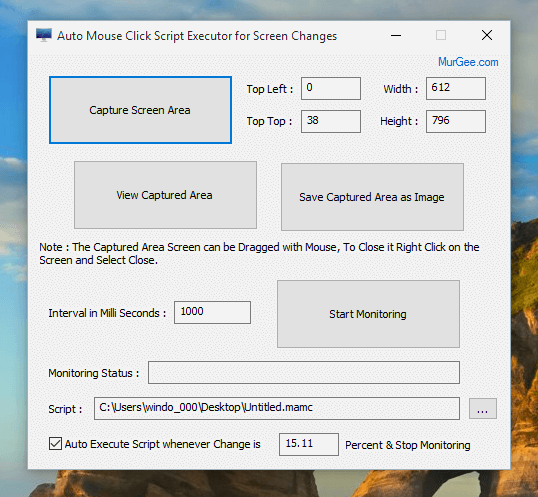
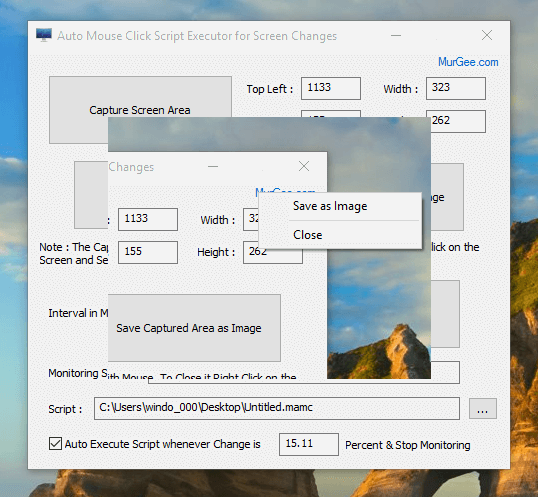
The Image Search Software Application presented above allows you to Capture Screen Area and then Monitor that rectangular screen area for changes. Once you have defined the Screen Area in which you need to search an image, you can view captured Screen Area using the View Captured Area Button which opens up a small popup window displaying the rectangular screen area captured earlier. The Captured Screen area is defined in terms of pixel location and width and height. The Captured Screen Area can be adjusted manually by updating the Top Left, Top Top, Width and Height parameters.

View Screen Area to Monitor for Changes or Save as an Image

View Screen Area to Monitor for Changes or Save as an Image

Note in the above screenshot that the Captured Screen Area is displayed as an Image in a Popup Window. This popup Window can be closed by doing a right mouse click and then selecting the Close option. You can even drag this popup window to any other area on screen by using Mouse. The Image Search performed by this software looks only in the captured area and using the smallest possible screen area to search for is the fastest way to find image on screen. The captured Screen Area can be saved as a .png File from either right click menu or from the main software screen.

How to Find Image on Screen and Execute a Macro Script

In order to search an Image on Screen, you need to define the area in which the image will appear. Once you have defined the screen area, go ahead and Start Monitoring the Screen Area. Note carefully the Screen Change and note it down. Now create a Macro Script with Auto Mouse Click Software containing Mouse Click, Keystrokes or any other Windows Automation Action and assign that Macro Script to be executed whenever a perfect screen image is found. Given below steps outline, how you can quickly start and run your Image Search on Screen. Apart from searching Image on Screen, you can utilize the Screen Change feature to Monitor Screen for other objects like Text, Game Objects like Fire, Gun, Award Points and create a Bot which handles Screen Changes and lets you take action depending on the Screen Change.

  1. Download and Run the Image Search Software from the Tutorials Section.
  2. Now Click on Capture Screen Area Button and use Mouse to Draw a Rectangular Area on Screen in which your intended Image or any other Game Object is going to appear. Note that using the smallest possible Image Search Area ensures faster performance of the Image Search.
  3. Now Click on Start Monitoring button which will start detecting changes on screen at every 1000 milli seconds. Yes you can change the Time Interval at which Screen Changes are detected by the software.
  4. Now let your Game or any other Screen object appear on screen and note the Change in Screen Percentage. Once you have noted the Screen Change percentage, click on the Stop Monitoring Button and proceed ahead to the next step.
  5. Create a Macro Script which you want to be executed whenever the Image Search is successful. Now use the Browse to file button and select the Macro Script File.
  6. Enter the Screen Percentage as noted in steps 4 in the edit box near the check box which reads, Auto Execute Script when Screen Change is 0.00 percent.
  7. Check the check box to Auto Execute Script and Click on Start Monitoring Button. The Software will auto execute the Macro Script when your Screen Area changes by exactly the same percentage.

The above unique Image Search method ensures that you can monitor any screen area and whenever your pre-defined image appear on the screen you can take appropriate action. You can use this software to auto click in Game, create a Image Search Bot to monitor screen for changes or anything else. The Macro Script can contain a single or multiple Mouse Clicks at pre-defined locations, Simulate Keys on Keyboard, Launch Application, Open Documents, Terminate Applications and much more.

Free Bulk SMS Software

Send SMS from your Windows Computer to any Mobile to any country in world with Free Bulk SMS Software presented here. This SMS Software sends SMS from your own SIM Card with the help of a 3G dongle or any leading company like Airtel, Vodafone, etc. There is no registration required and no API or online account creation is required. This Bulk SMS Application works on Windows 10, Windows 8.1, Windows 8 and even on Windows 7 and is really easy to use. All you need to start sending SMS from your Windows PC is to connect your 3G dongle, start the software and start sending SMS Messages.

Best SMS Software to send SMS Messages from Windows PC

Best SMS Software to send SMS Messages from Windows PC

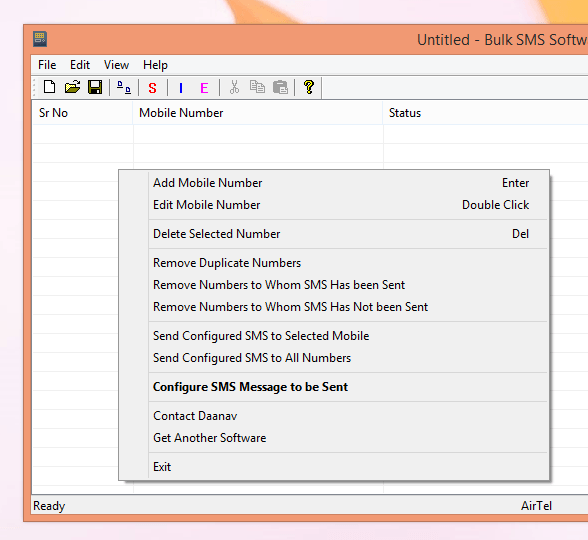
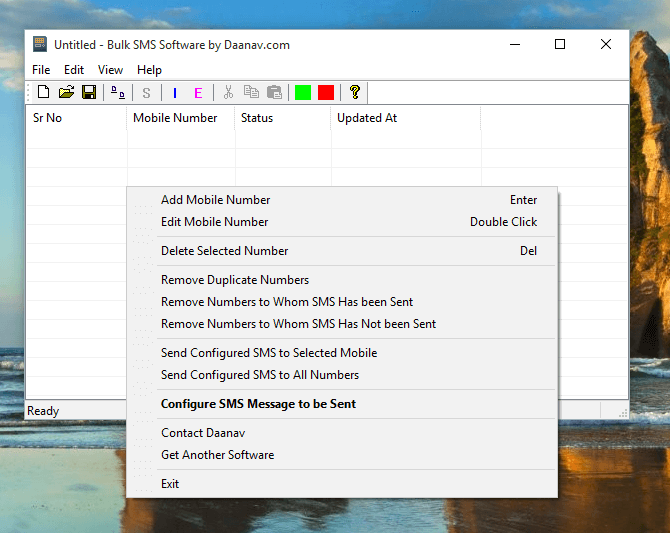
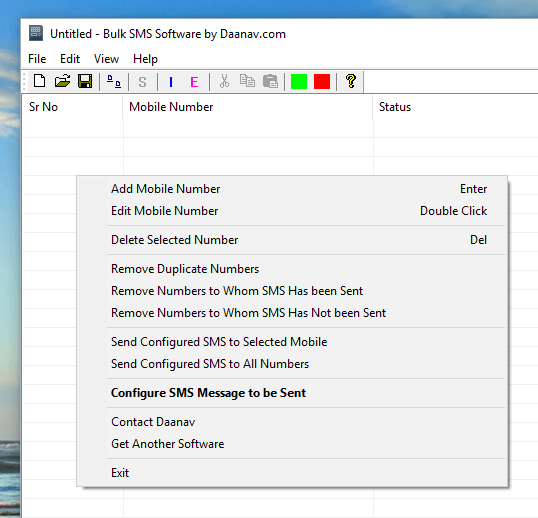
The above screenshot displays a right click menu which allows you to control the Bulk SMS Software. Yes you can send English and Non-English SMS Messages, however non-English characters follow Unicode method and occupy double the data as compared to English characters. You can import a list of Mobile Numbers to which you wish to send SMS and then start sending SMS Messages. The Configuration settings do allow you to control the maximum number of SMS Messages to be sent in a day. The Number of SMS Messages sent by the software are displayed in the status bar of the software.

Import Mobile Numbers to Bulk SMS Software

Import Mobile Numbers to Bulk SMS Software

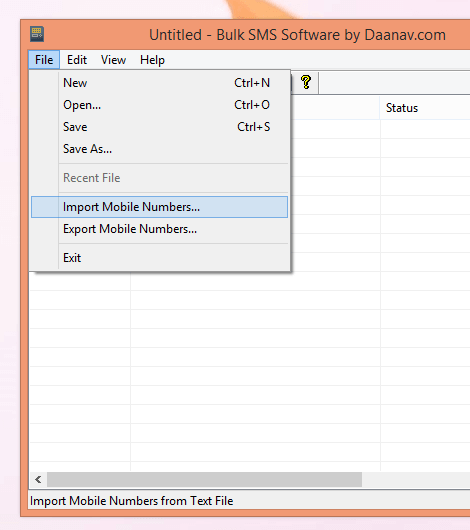
The above screenshot displays how you can Import Mobile Numbers to which you wish to send SMS Messages from a text file. The Mobile Numbers must be present in the text file on every line and the file must be in Unicode. The best part of this whole SMS Sending Software is that you can save all your data in a SMS Profile File. Let’s say later you wish to find out the number of SMS Messages sent by this SMS Software or you wish to find out whether SMS Message has been sent to a particular number or not, the SMS Profile File can store all the related data allowing you to easily view the statistics and details of any SMS Session.

Send a Single SMS Message from the Bulk SMS Software

Send a Single SMS Message from the Bulk SMS Software

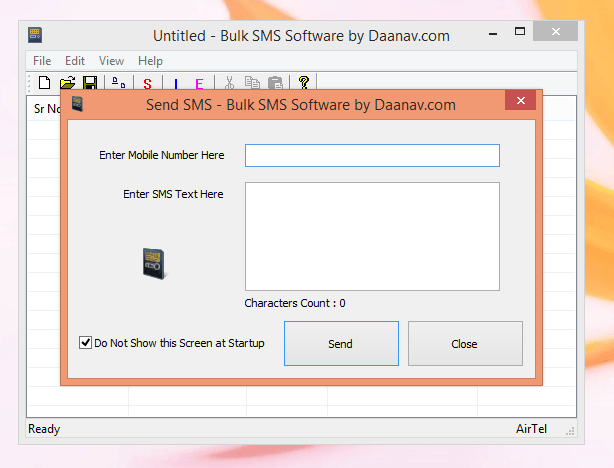
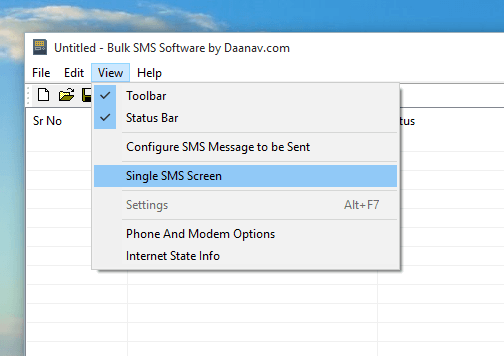
The above screen displays the single SMS Message screen which allows you to enter the Mobile Number and your desired SMS Text to be sent to a single number. Do remember that although this Bulk SMS Software is Free to download and use, you will be charged by your Mobile Carrier for each SMS sent out. When sending SMS Messages to multiple Mobile Numbers, it is best to get an SMS Pack from your Mobile Carrier company like Airtel, Vodafone, Idea or any other Mobile Company so that you can save money on the cost of SMS Messages. Although sending International SMS should work fine, however this Free Bulk SMS Software is best suited for group SMS Sending with an SMS Pack so that the costs involved can be kept to minimum.

Free Bulk SMS Software

Free Bulk SMS Software

Easy configuration, SMS Management, Error Handling and other features of this Free Bulk SMS Software does make this Application really the Best SMS Software. The underlying technology of this SMS Application does detects your USB Modem / Dongle Automatically and displays the Communication Provider name in the status bar of the application. Whether you wish to keep your customers informed about any event, send out Marketing SMS or any Informational SMS Message, this Freeware Application can be of real help. You must make sure that you do understand and abide by laws in your own country for sending SMS Messages. This SMS Software can send SMS Messages, however it cannot guess or understand your intentions and hence you are responsible for sending out the SMS Messages. To begin with, do follow the given below steps and send a single SMS Message to your own Mobile Number. Once you have completed the given below steps, you should be able to understand how to use this Bulk SMS Software and proceed ahead for sending out SMS Message in group.

How to Send SMS Message from Windows Computer to Mobile with Free Bulk SMS Software

The given below procedure outlines the steps required to download, install and use this Free Bulk SMS Software and send a single SMS Message to your own Mobile Number.  Once you have successfully sent and received a single SMS Message, you can proceed ahead and import mobile numbers from a text file and start sending a single SMS Message to a group of people.

Single SMS Screen of Free Bulk SMS Software

Single SMS Screen of Free Bulk SMS Software

  1. Plug in your USB Modem or Dongle and wait for Windows to detect it. Once Microsoft Windows does detects your USM Modem, you can proceed ahead to Send SMS Messages.
  2. Download and Install Bulk SMS Software on your Windows Computer. Note that you must be running Windows 7, Windows 8, Windows 8.1 or Windows 10 Computer in order to use this Bulk SMS Software.
  3. Launch the Bulk SMS Software from Desktop Shortcut or from Programs Menu. It takes around a minute for the software to detect your USB Modem.
  4. Look closely at the status bar of the software which is present at the bottom of the software screen. The Bulk SMS Software should display the name of Mobile Company which is powering your USB Modem. The first screen of this post displays Airtel as the Mobile Services provider company name.
  5. Once the software has detected your USB Modem, you are ready to proceed ahead and start sending SMS Messages. In this procedure, we are going to send a single SMS Message, however by following along, you can easily send SMS Message to a group of Mobile Numbers easily and quickly.
  6. As displayed in the screenshot above, launch the Single SMS Screen from the View Menu of the Software. Enter your own Mobile Number, and the enter the SMS Text and finally click on the Send Button to command this SMS Software to send the SMS Message to your Mobile Number.
  7. Once you do receive the SMS Message, do carefully review the SMS Text sent by this Free Bulk SMS Software. You can follow the step 6 again to send another SMS Message to your Mobile Number or import multiple mobile numbers from the File Menu of the software.

Whether you have a 2G, 3G or 4G USB Modem detectable by this software, you should be able to send SMS Messages with this Free Bulk SMS Software. Note that Sender ID of the SMS Messages would be the Mobile Number of the SIM Card inserted in the USB Modem. This SMS Software works on Windows 7 and later versions and works fine on both 32 bit and 64 bit Windows versions. All the SMS Messages are sent using the services of SIM Card inserted and the costs involved would be applicable as decided by the company providing your SIM Card. You do not need to pay money for using this Free Bulk SMS Software, although you can get the Software Promotion text removed by paying the required registration fees.